- Item Name : Auriva - Hotel Booking WordPress Theme
- Author : Theme Junction
- Support : https://support.themejunction.net/
Getting Started
Welcome to Auriva.
Auriva is a clean and modern theme designed for business consulting and services related businesses. The theme features layouts tailored for showcasing services, projects, pricing, testimonials, and contact form. You’ll also get unique pages such as About, Services, Portfolios, Blog, and Contact to present your garage or auto service business professionally.
Requirements
You need to have WordPress version 6.0 or higher installed for this theme to work properly. We strongly recommend using the latest stable version of WordPress to ensure that all known bugs are fixed and security issues are addressed. Other requirements include:
- PHP version 7.4 or higher is required. For optimal performance, we recommend using PHP version 8.1 or above.
- MySQL version 5.6 or higher OR MariaDB version 10.0 or higher.
- WordPress memory limit of 128 MB or greater.
Server Requirements: https://make.wordpress.org/hosting/handbook/handbook/server-environment
PHP Configuration For Hosting Server
Use the following configuration in your PHP configuration file on the hosting server to fix issues with Elementor editing and demo import.
- max_execution_time = 1000
- max_input_time = 600
- max_input_vars = 1000
- memory_limit = 512M
- post_max_size = 128M
- upload_max_filesize = 128M
- allow_url_fopen = ON
- asp_tags = OFF
- cURL = ON
What's Included
After purchasing the Auriva theme on ThemeForest with your Envato account, go to your Downloads page. From there, you can choose to download either the installable WordPress theme file (ready for direct upload) or the complete Auriva theme package.
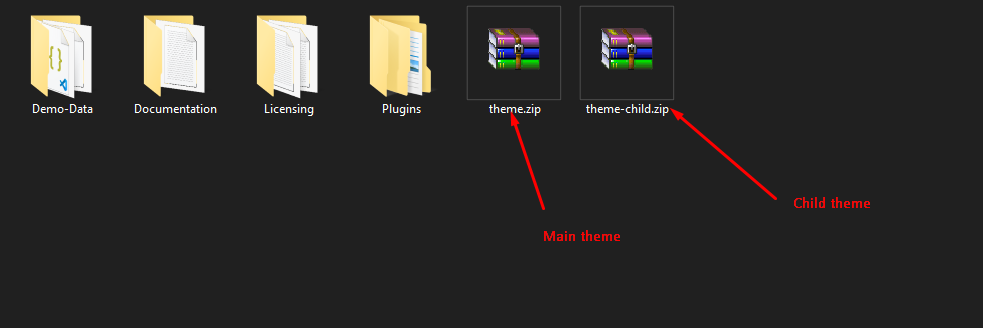
- auriva.zip : Installable WordPress theme file.
- auriva-child.zip : Child theme with a readme.txt note about usage.
- bundled-plugins : Contains required plugins for the theme.
- sample-data : Demo content for importing sample layouts.
- licensing : Terms and conditions of the license.
- documentation-link.txt : Link to the online Auriva documentation.
Theme Installation
Important: If you download the full package from ThemeForest and try to upload it directly to WordPress, you may encounter the following error: “The theme is missing the style.css stylesheet.” To avoid this, make sure you extract the package first and upload the correct installable theme file (auriva.zip) to WordPress.
Please follow the instructions in the video to learn how to install WordPress on your hosting.
- For local host: https://www.youtube.com/watch?v=snFzbPm_RUE
- For cPanel: https://www.youtube.com/watch?v=t-YBqV2ReR0
Using Theme Uploader:
After that, you need to install and activate the following pre-packaged plugins.
Server Requirements: https://make.wordpress.org/hosting/handbook/handbook/server-environment
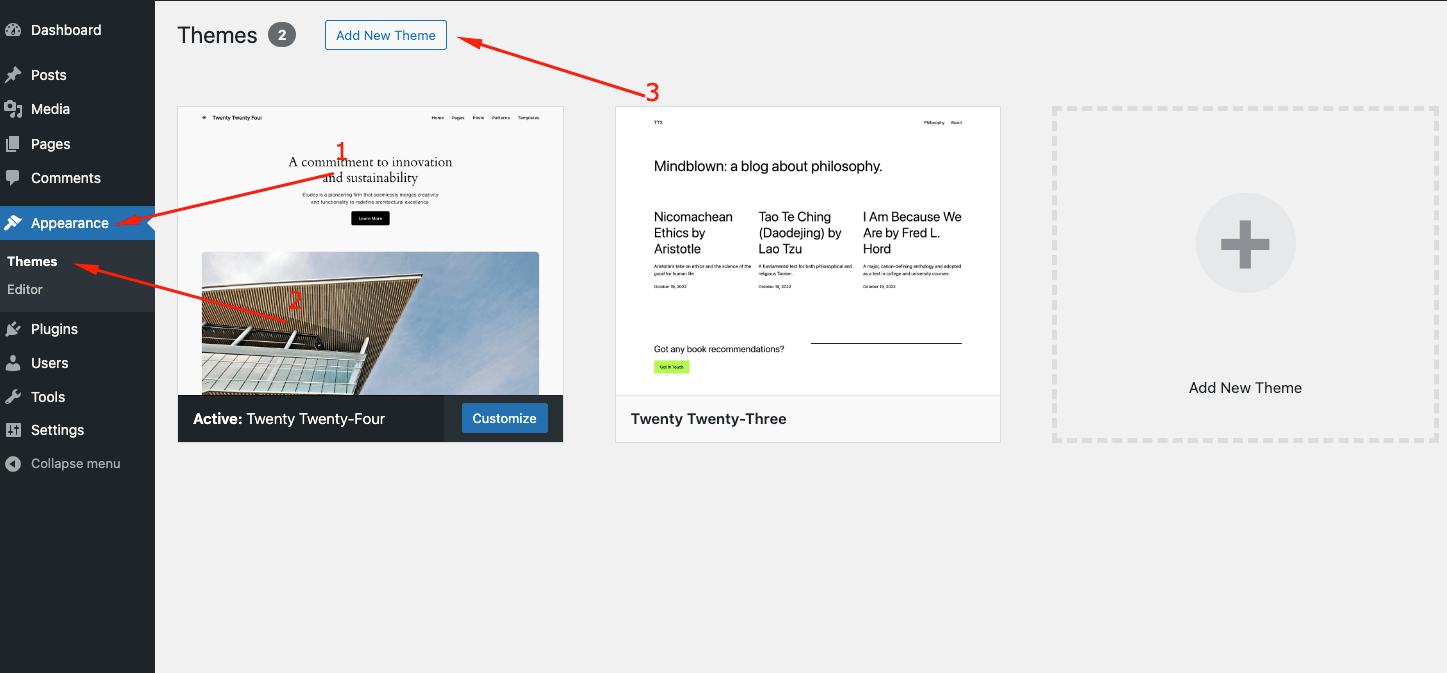
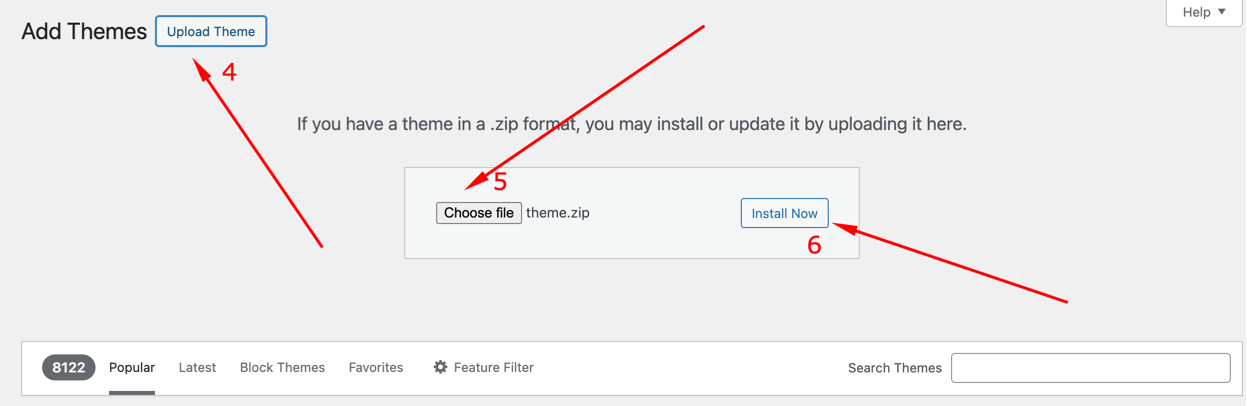
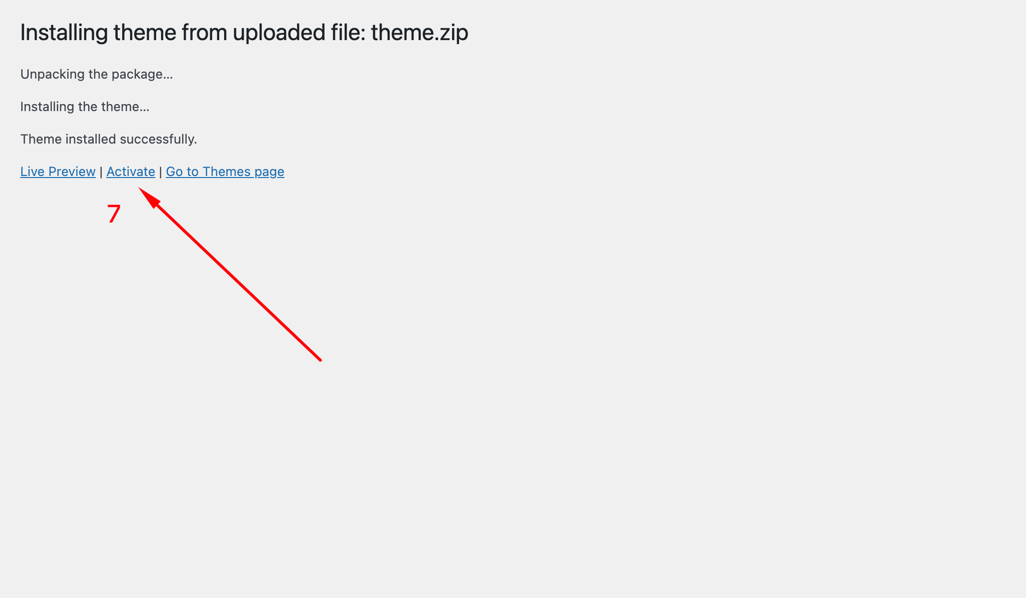
Please follow the steps as shown in the images below.
- From the dashboard go to Appearance Themes Add New Upload Theme
- Click on “Choose File” and select auriva.zip
- Click on “Install Now”
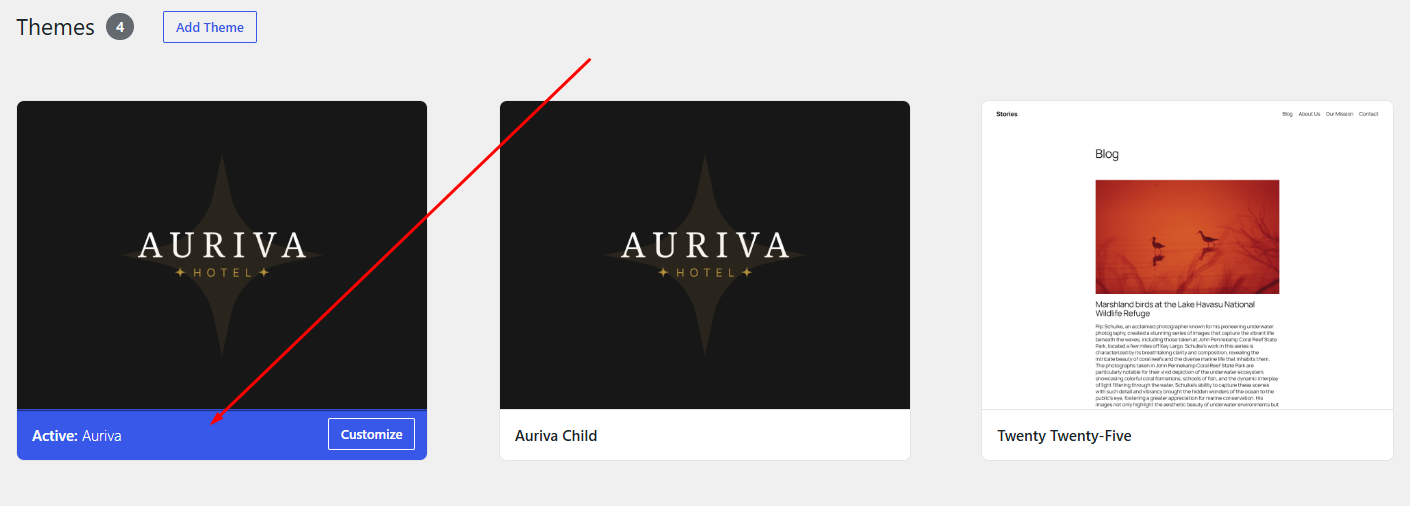
- Active the Theme
Using FTP Clients:
Follow these steps to upload your theme using an FTP client:
- Use an FTP client, such as FileZilla, to access your WordPress installation directory.
- Navigate to the /wp-content/themes/ folder and upload the extracted Auriva theme folder.
- Log in to your WordPress Admin Dashboard and go to Appearance Themes
- Locate the Auriva Theme in the list of available themes and click Activate to complete the installation.
Child Theme
Our theme is fully child-theme compatible. A basic child theme is included in the download package, containing only the minimum required files. If you plan to make any code customizations, we highly recommend doing so within the child theme to ensure your changes are preserved during theme updates. Learn more about child themes here.
Plugin Installation
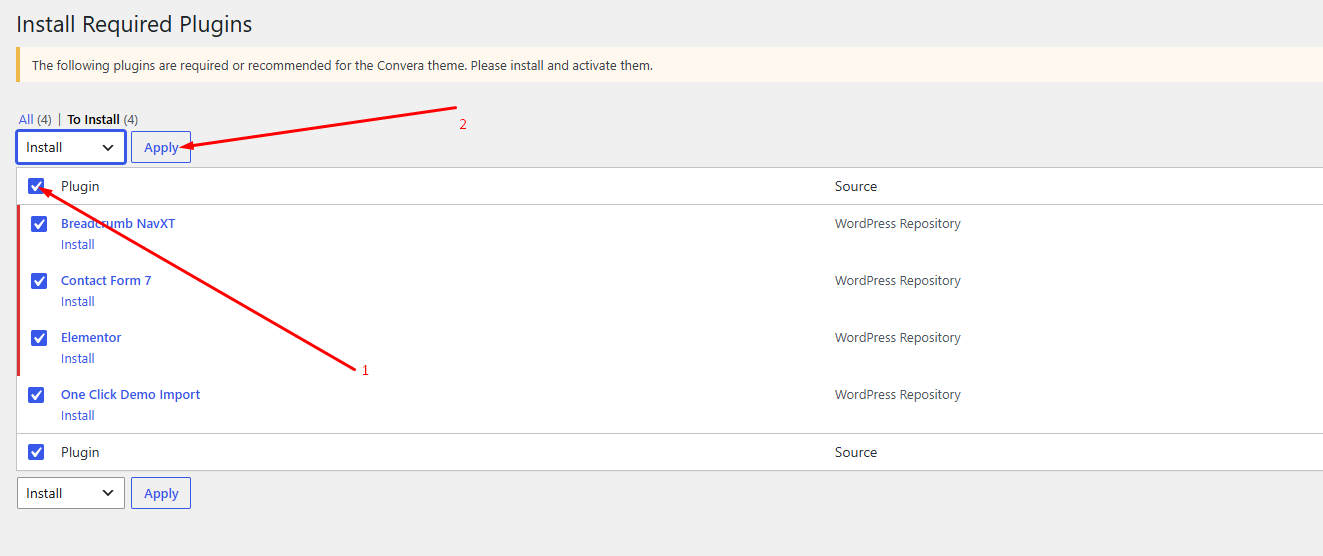
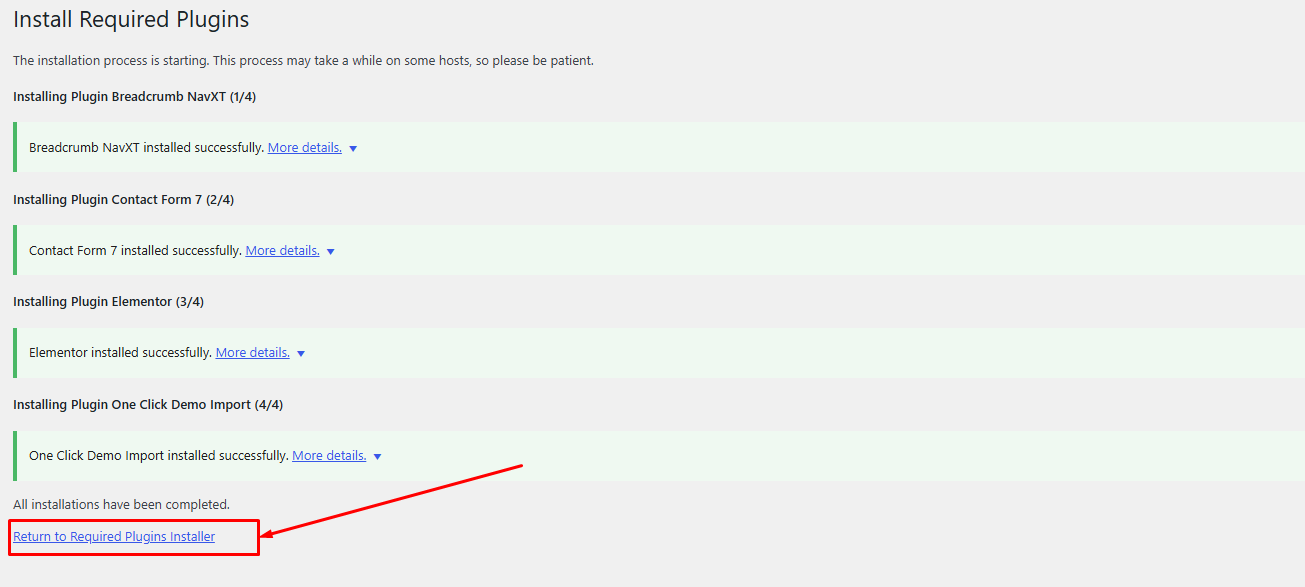
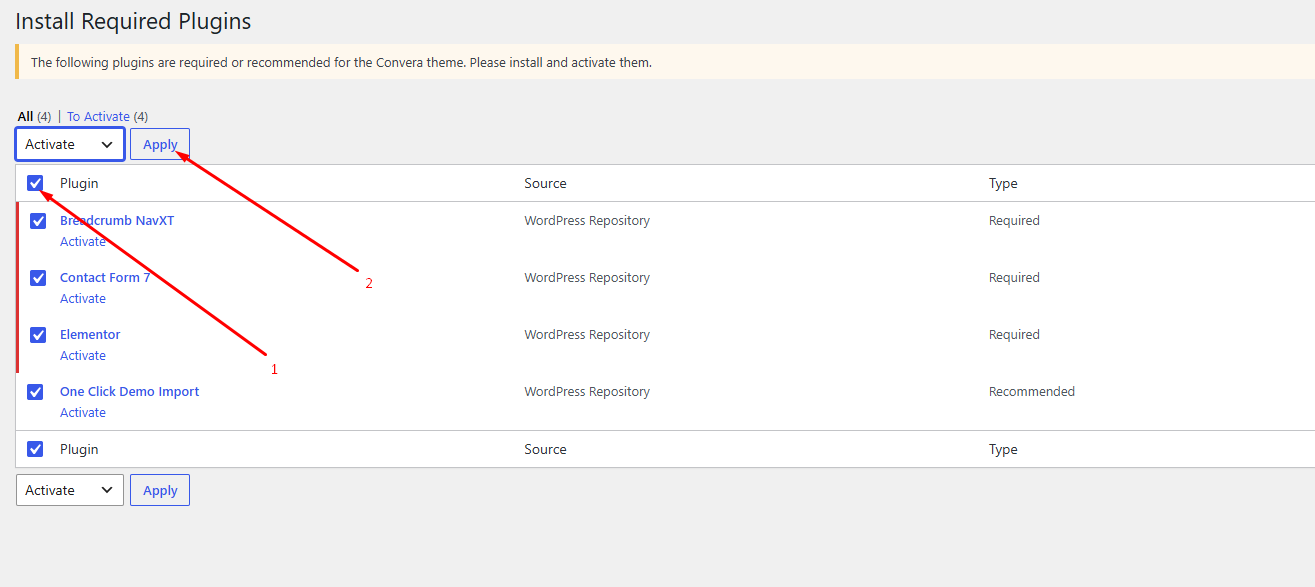
After installing the theme, you need to install and activate all required plugins.

Importing Demo Contents
We provide two methods for importing demo content: Automatic and Manual. You can choose to follow either method.
- Automatic (Recommended): This method will remove all existing data, so it should only be used on a fresh website. It is faster because the import process requires just one click, after which everything is handled automatically. If you want an exact replica of the demo website without performing any manual configuration after importing the data, this method is the most suitable option.
- Manual: Use this method only if the automatic demo import fails or if you already have a working website with existing content (e.g., posts, pages, etc.).
Automatic Import:
Important: Before proceeding, please note that completing the demo import will remove all existing settings and content, replacing them with the demo content. Therefore, it is highly recommended to perform this process only on a fresh site.
- Ensure that the Auriva Parent Theme is activated on your site.
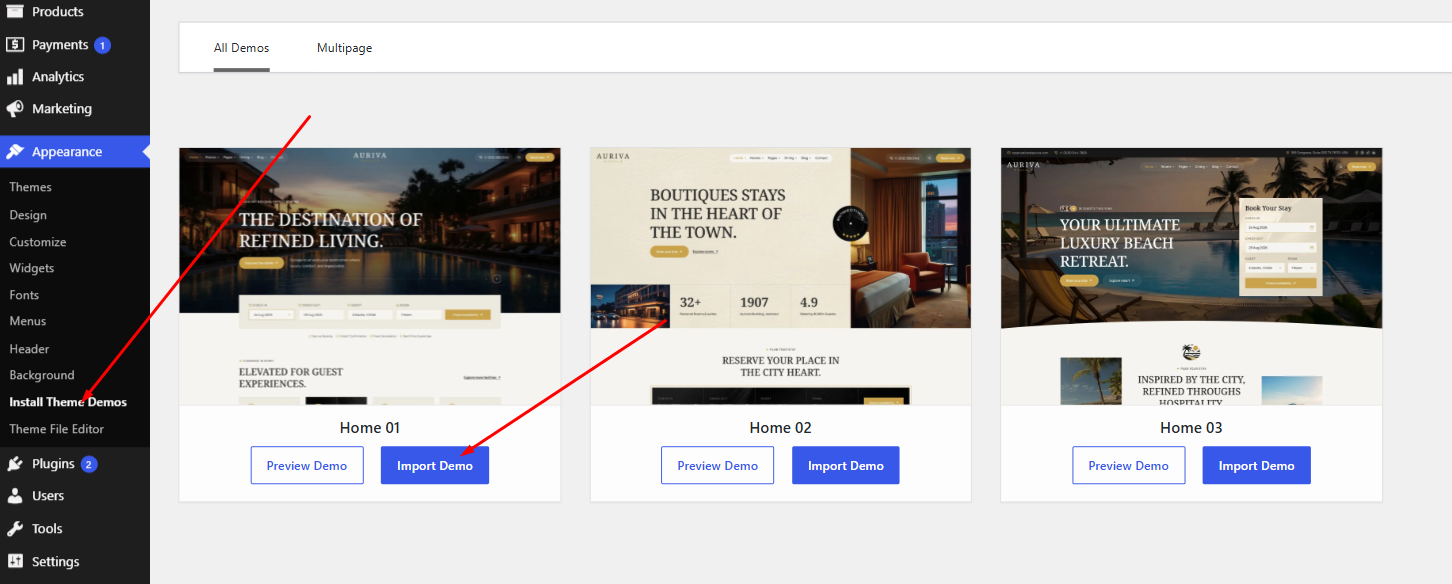
- From the WordPress dashboard, go to Appearance Install Theme Demos Import Demo
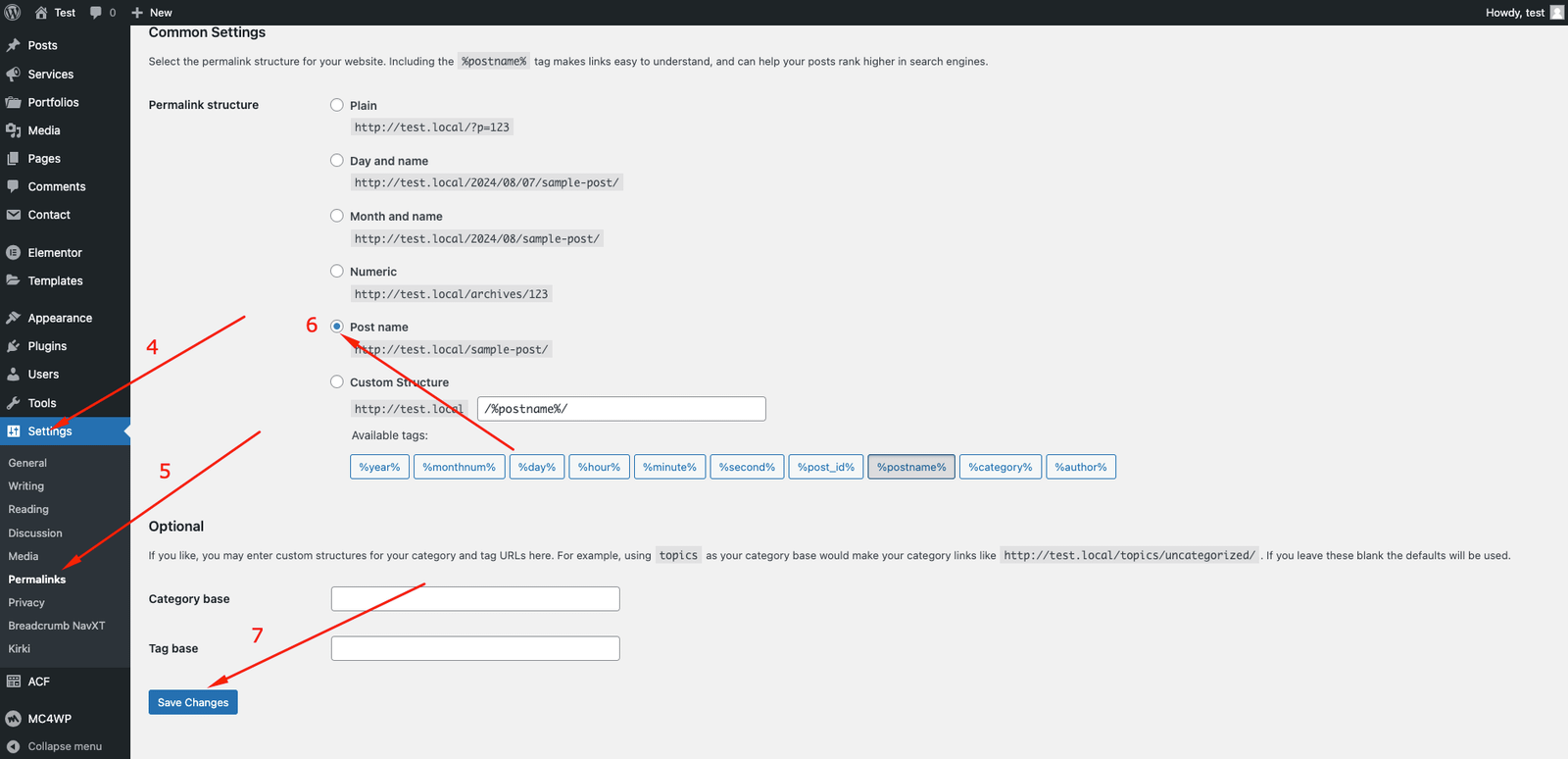
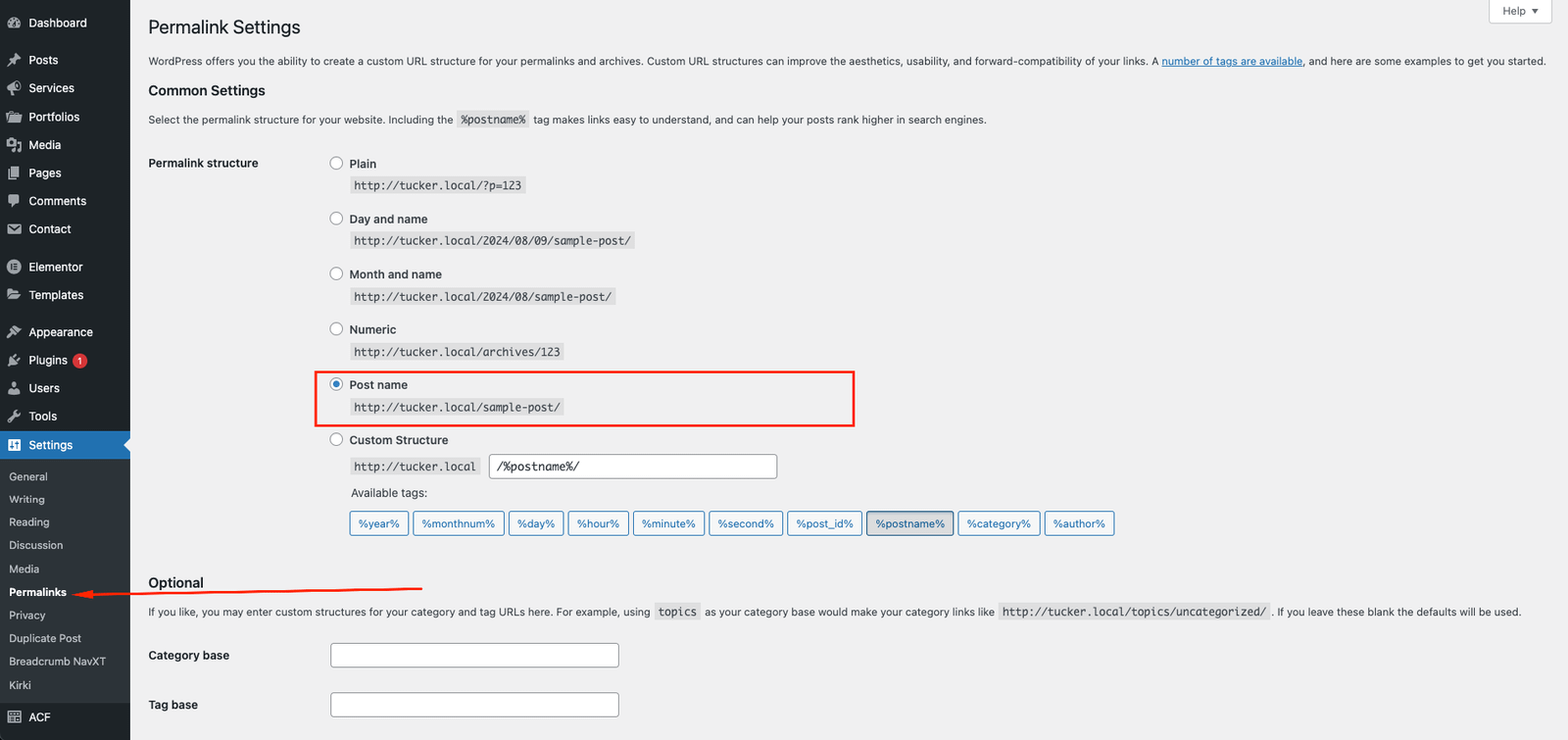
- To update permalinks, navigate to Settings Permalink Post name Save Changes
Manual Import:
We have included sample content in the sample-data directory of your theme package. You will need to import this content to set up the demo.
- Ensure that the Auriva Parent Theme is activated on your site.
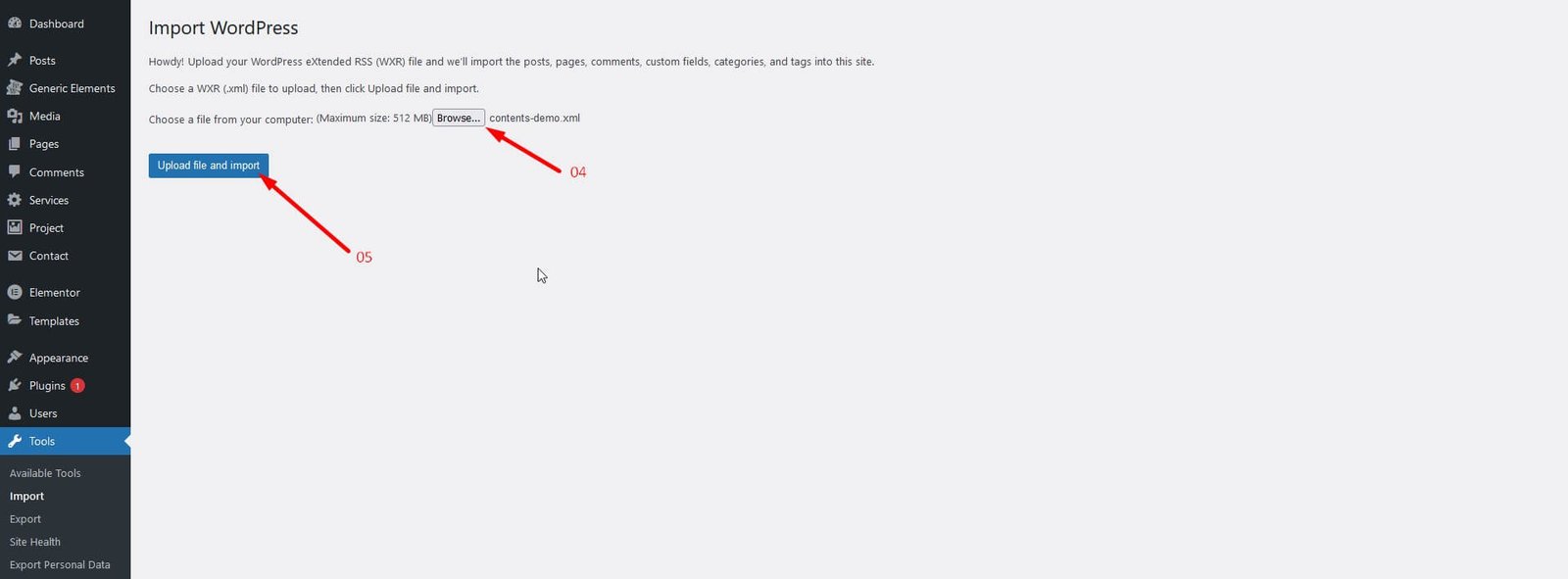
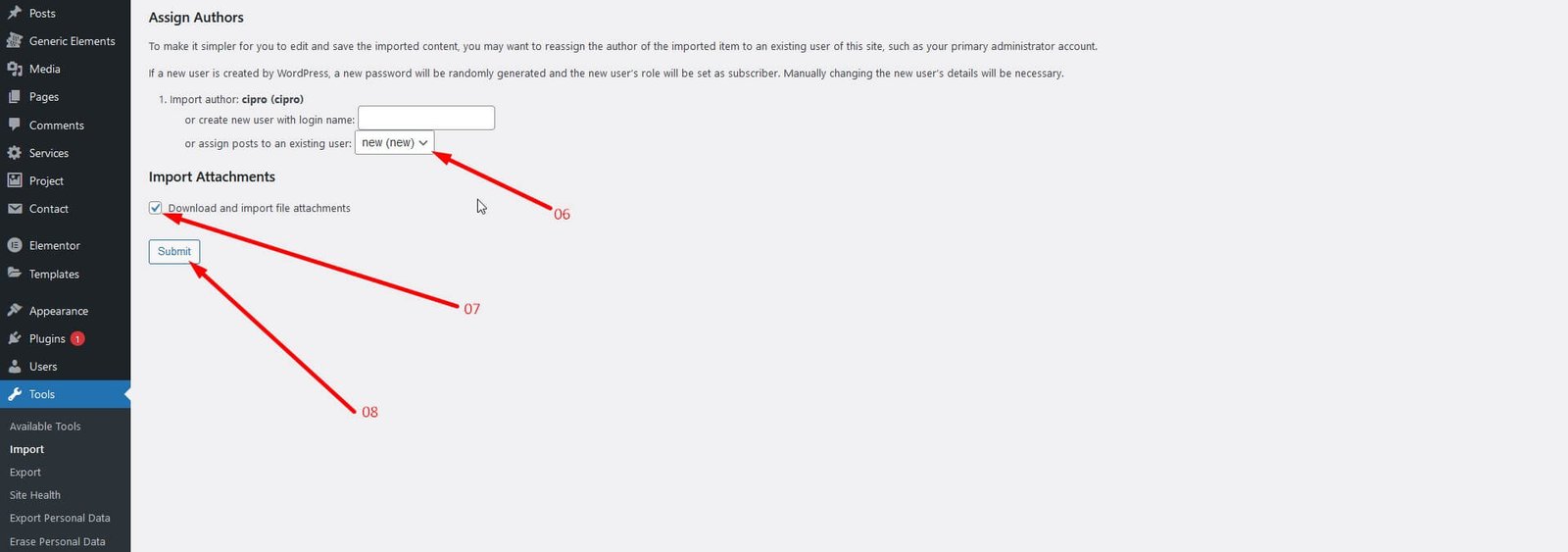
- Importing Contents : From the dashboard, go to Tools Import Install Now (WordPress) Run Importer Choose file -> contents-demo.xml Upload file and import
-
Importing Widgets :
Install the Widget Importer & Exporter plugin to import widgets.
Tools Widget Importer & Exporter Choose file -> widget-settings.wie Import Widgets -
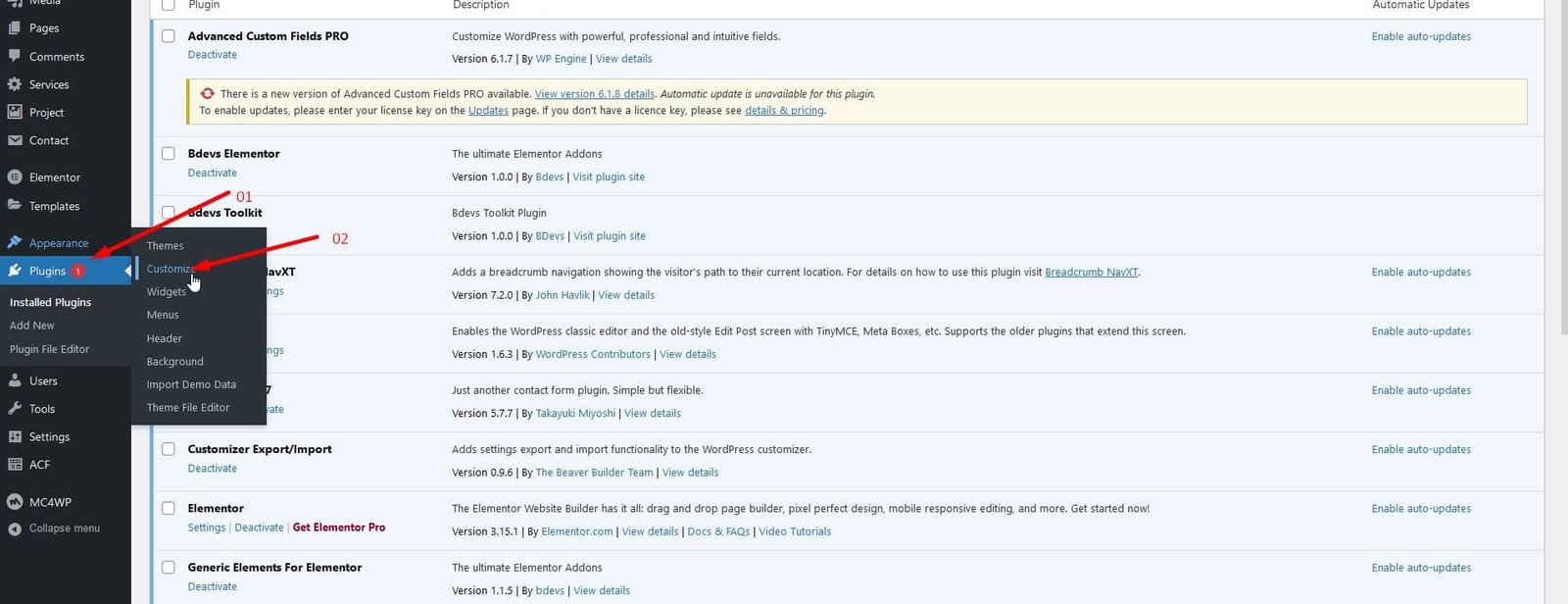
Importing Customizer Options :
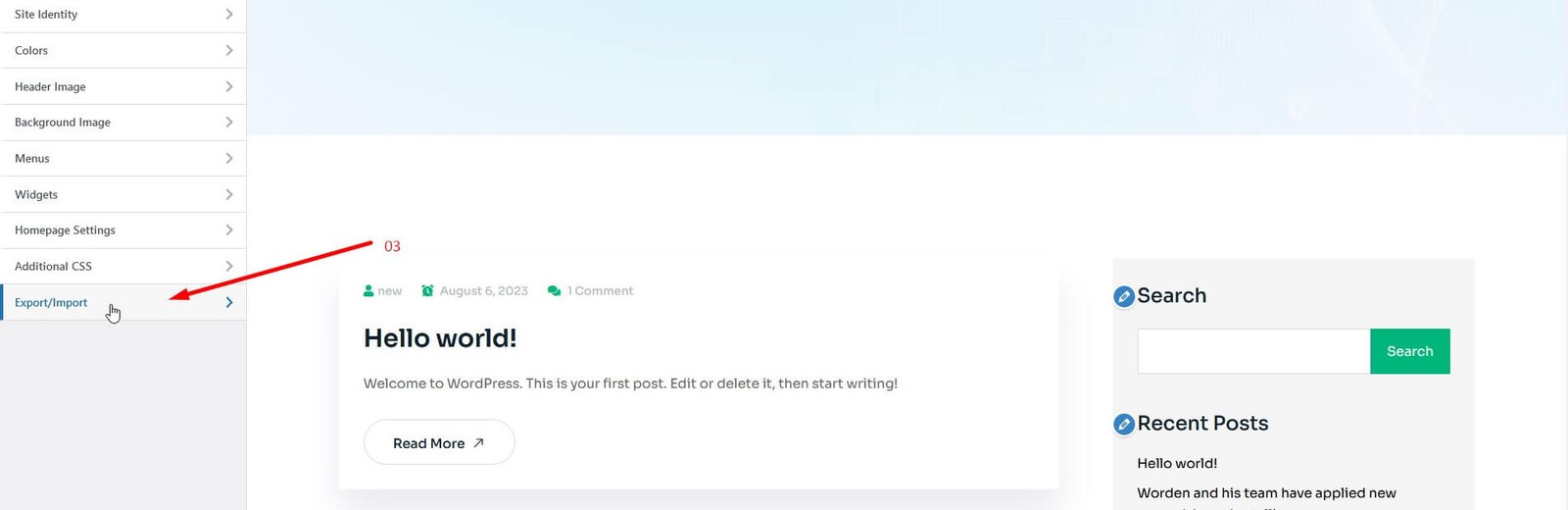
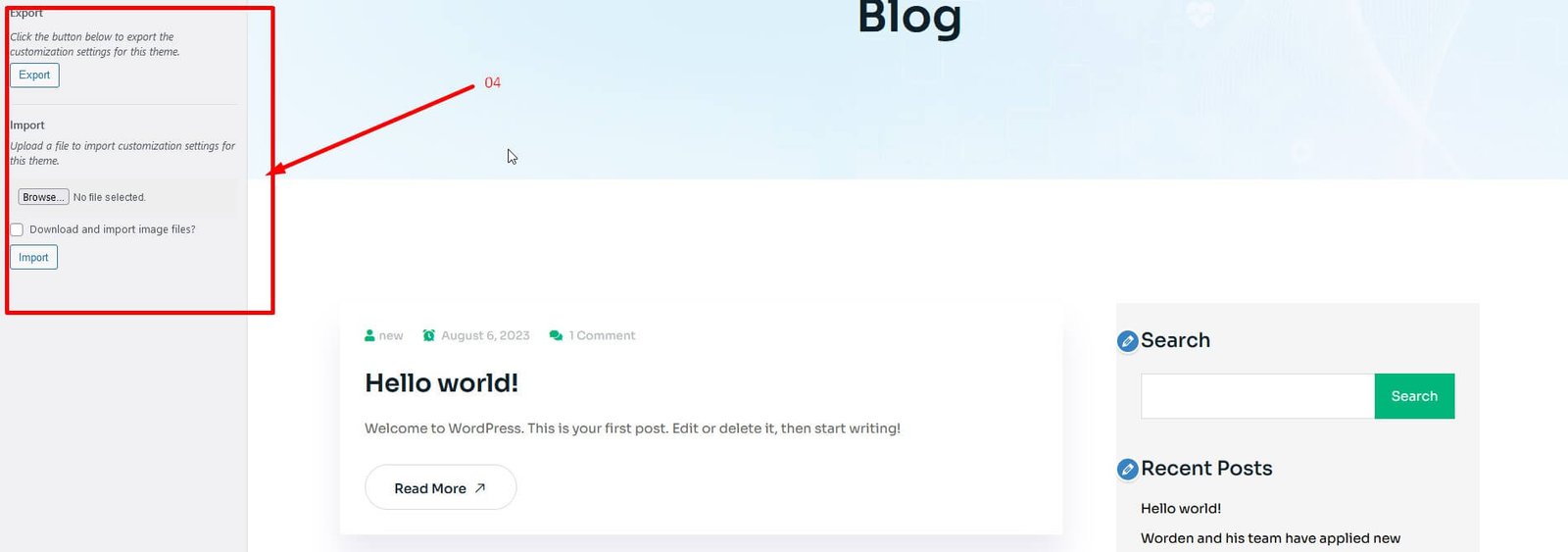
Install the Customizer Export Import plugin to import Customizer settings.
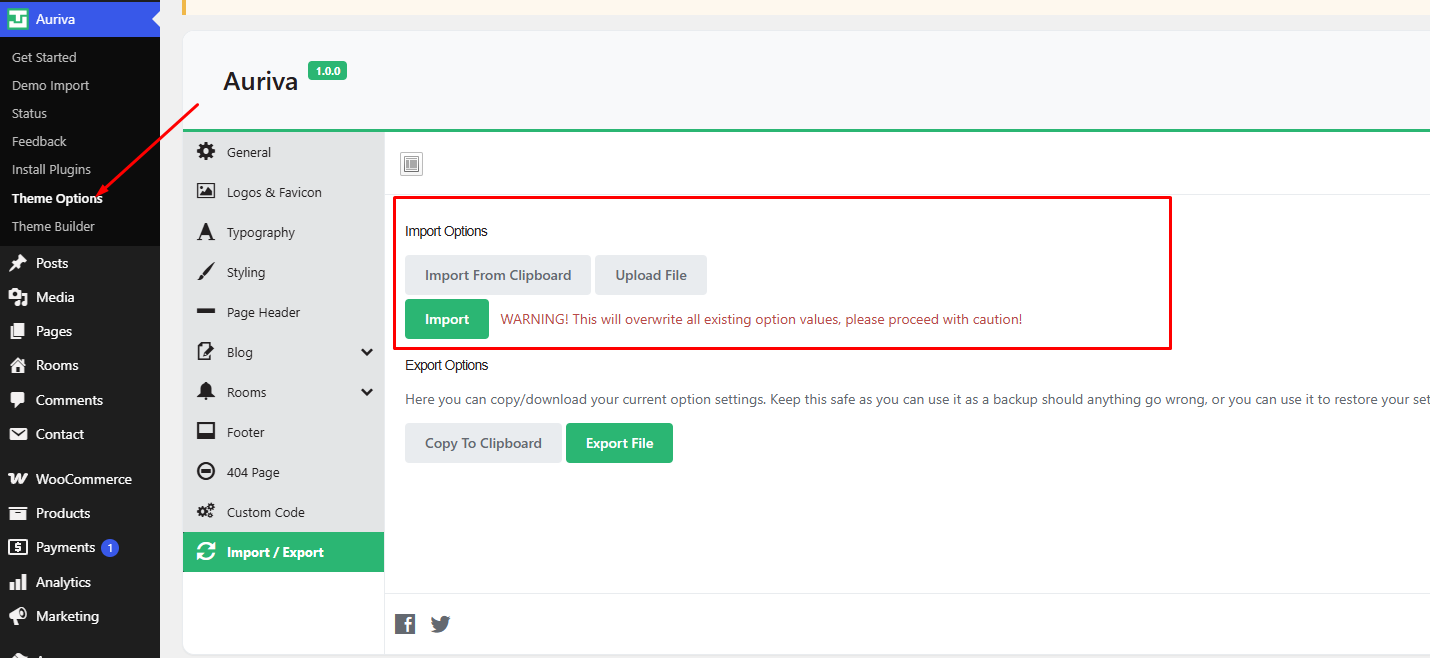
Appearance Customize Export/Import Import Choose file -> customizer-data.dat -> checked Import - Importing Redux Options : From the dashboard, navigate to Auriva Theme Options Import/Export Upload file -> redux-options.json Import
Importing Contents:

Importing Widgets:

Importing Customizer options:
Redux Options:
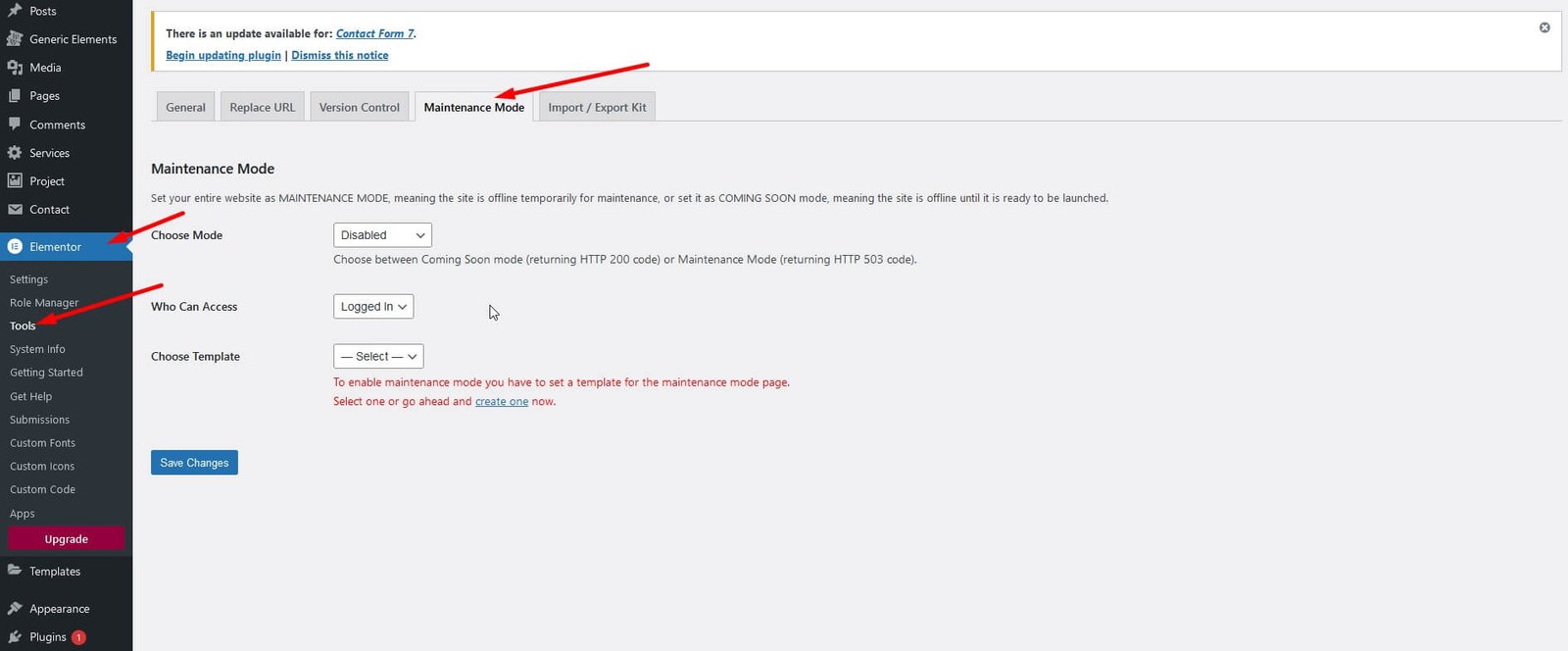
Turn on Coming Soon/Maintenance Mode:
To Enable Maintenance Mode: Learn how you can use it. https://elementor.com/blog/wordpress-maintenance-mode/
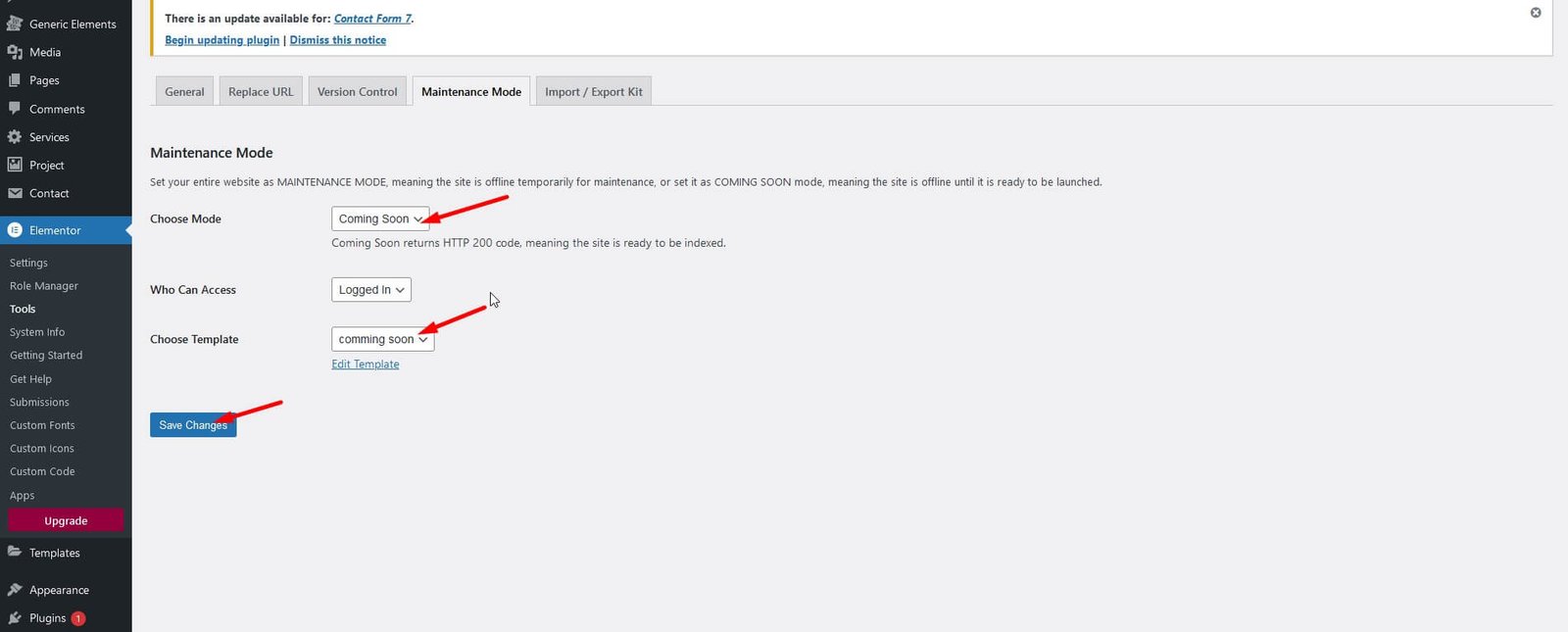
- Navigate to Dashboard Elementor Tools Maintenance Mode
- Choose between Coming Soon and Maintenance Mode
- Set the template for the Coming Soon Mode. Template name "Coming Soon"
Note: You will see a red button on the top WordPress admin bar labeled “Maintenance Mode ON”.
Basic Site Setting
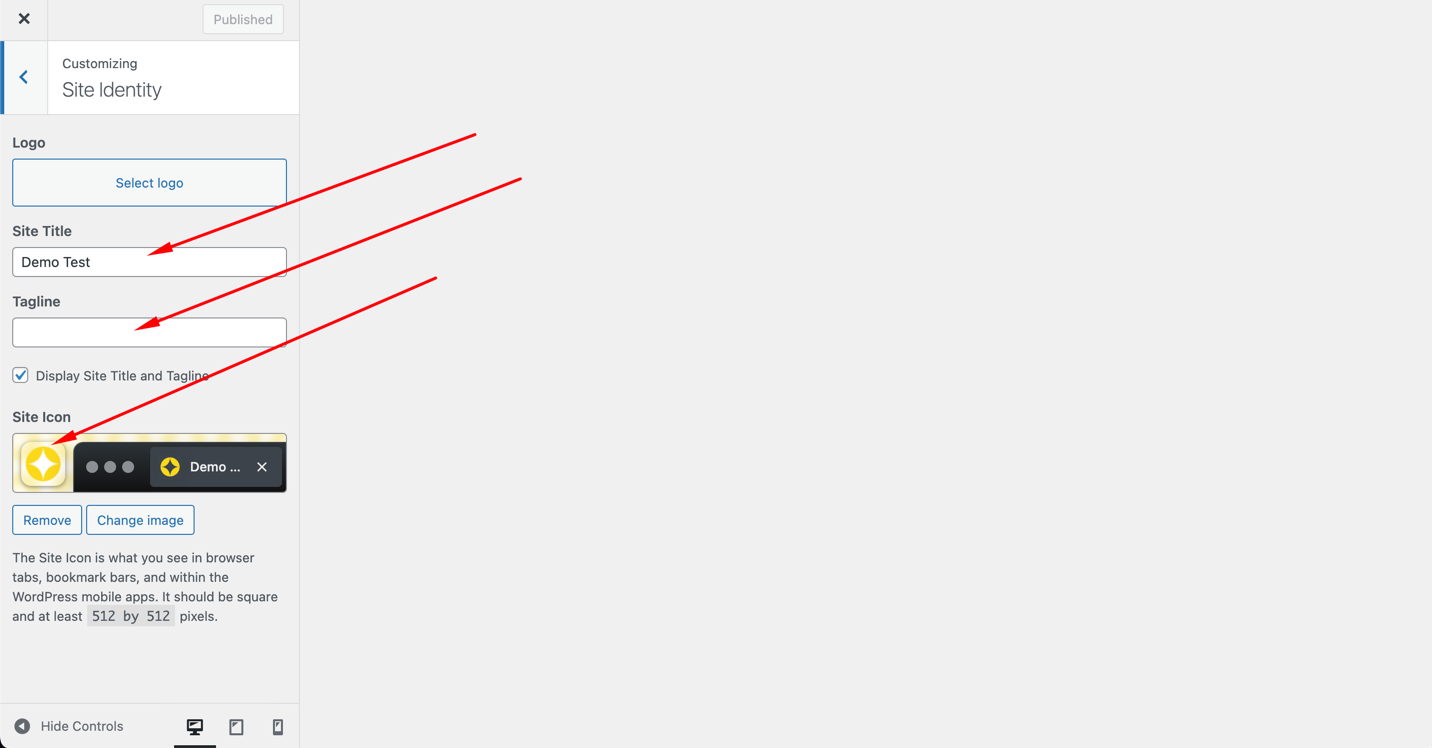
Change Site Title and Favicon:
To change the Site Title and Favicon, navigate to: Dashboard Appearance Customize Site Identity
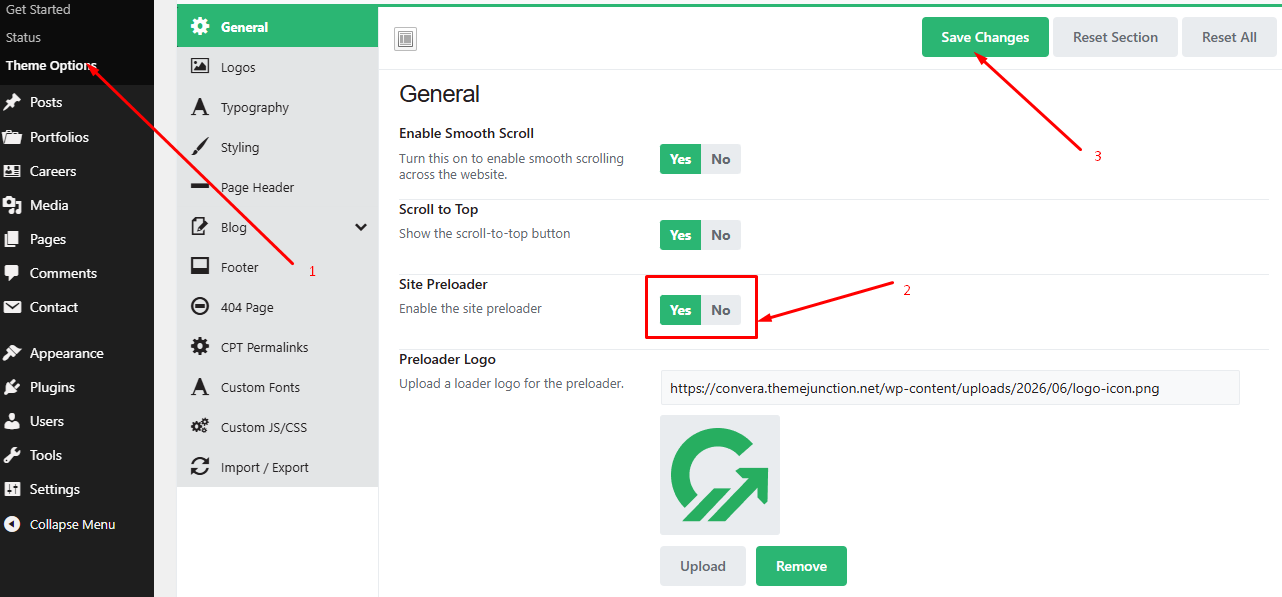
Preloader On/Off:
You can enable or disable the preloader by navigating to: Dashboard Auriva Theme Options General General Settings
Back to Top On/Off:
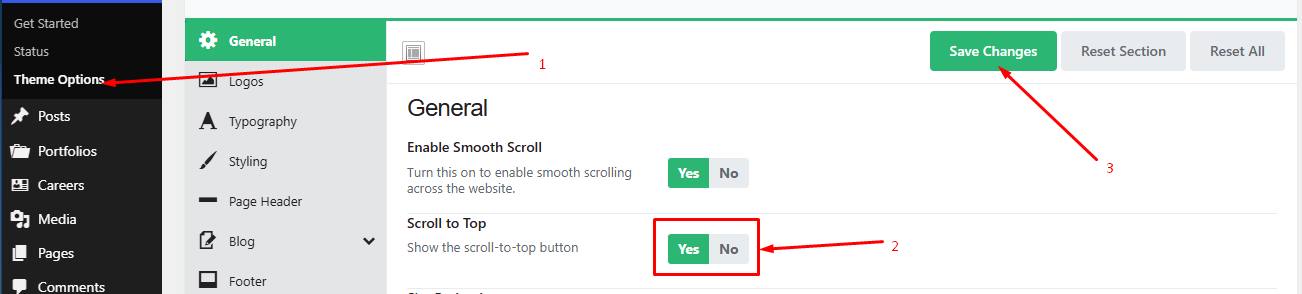
You can enable or disable the “Back to Top” button by navigating to: Dashboard Auriva Theme Options General General Settings
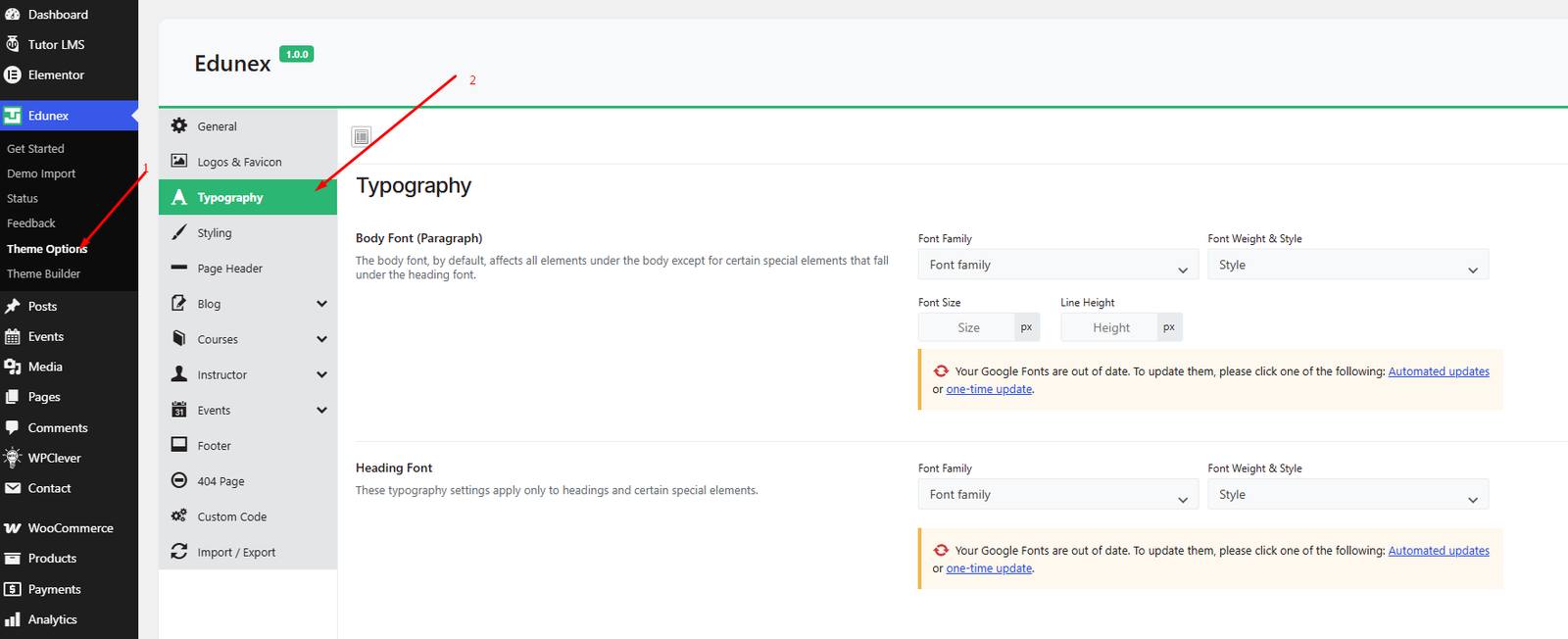
Typography Settings:
You can customize the fonts and typography of your site by navigating to: Dashboard Auriva Theme Options Typography
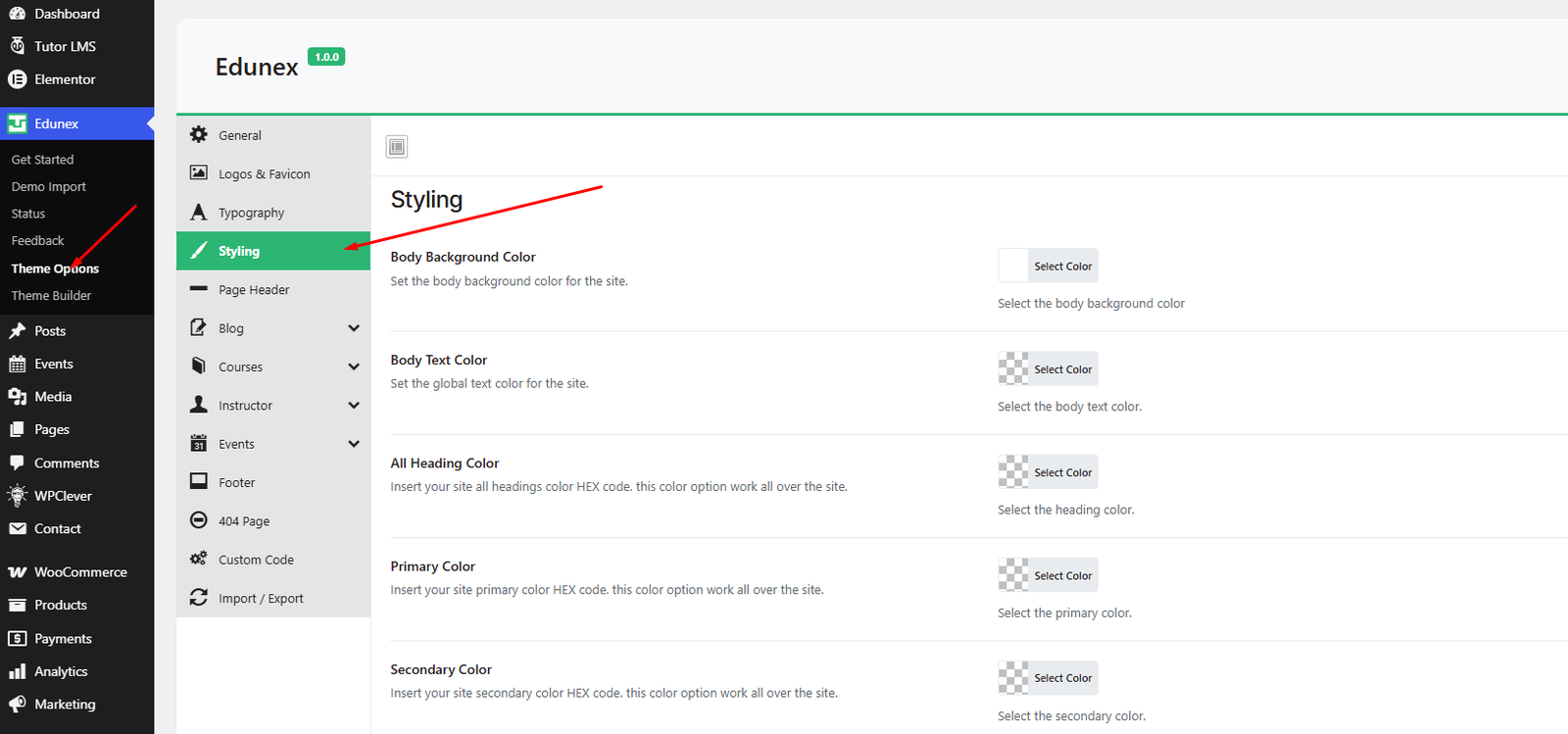
Color Settings:
You can customize the colors of your site by navigating to: Dashboard Auriva Theme Options Styling
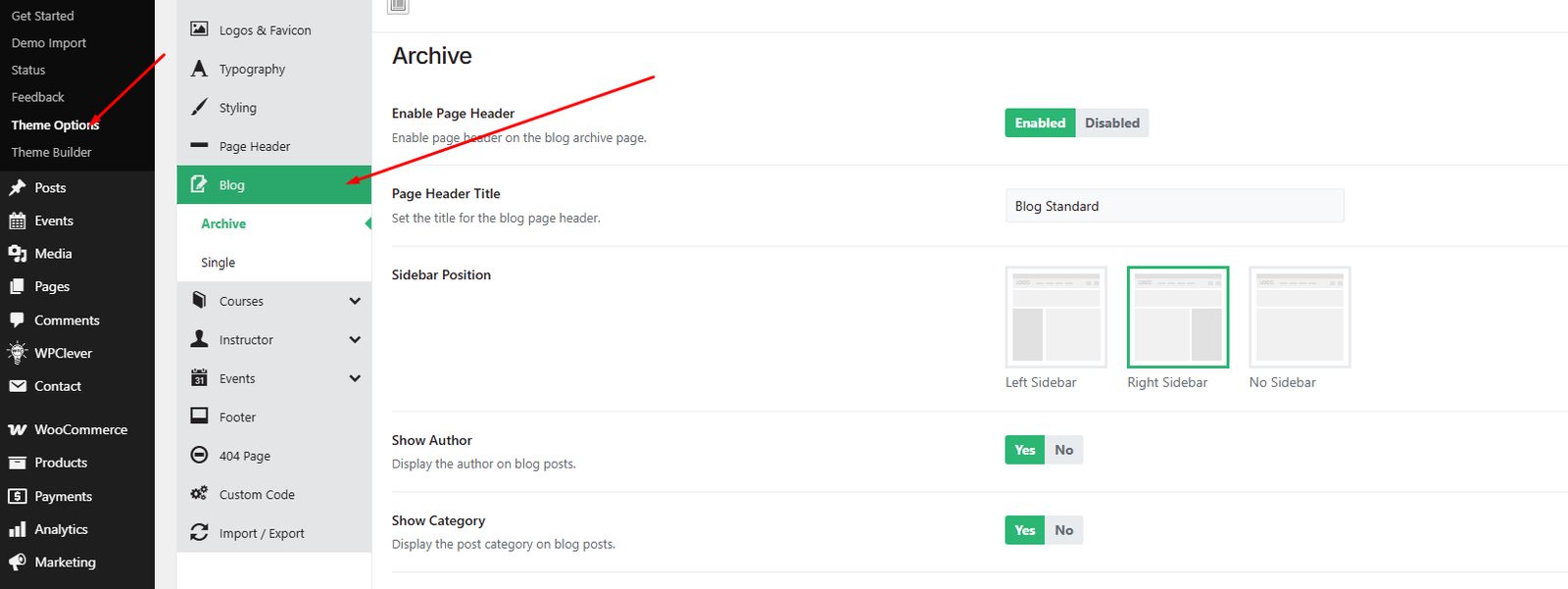
Blog Settings:
You can configure your blog layout and display options by navigating to: Dashboard Auriva Theme Options Blog
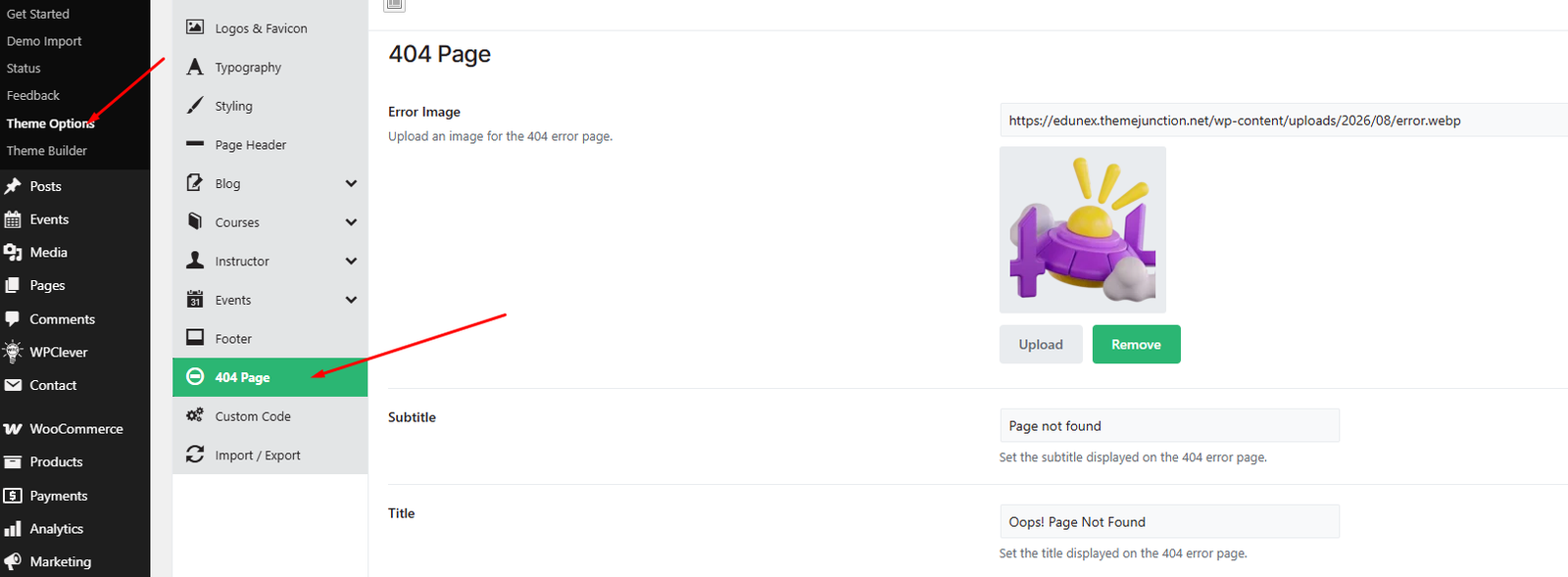
404 Page Settings:
You can customize the appearance and content of your 404 error page by navigating to: Dashboard Auriva Theme Options 404 Page
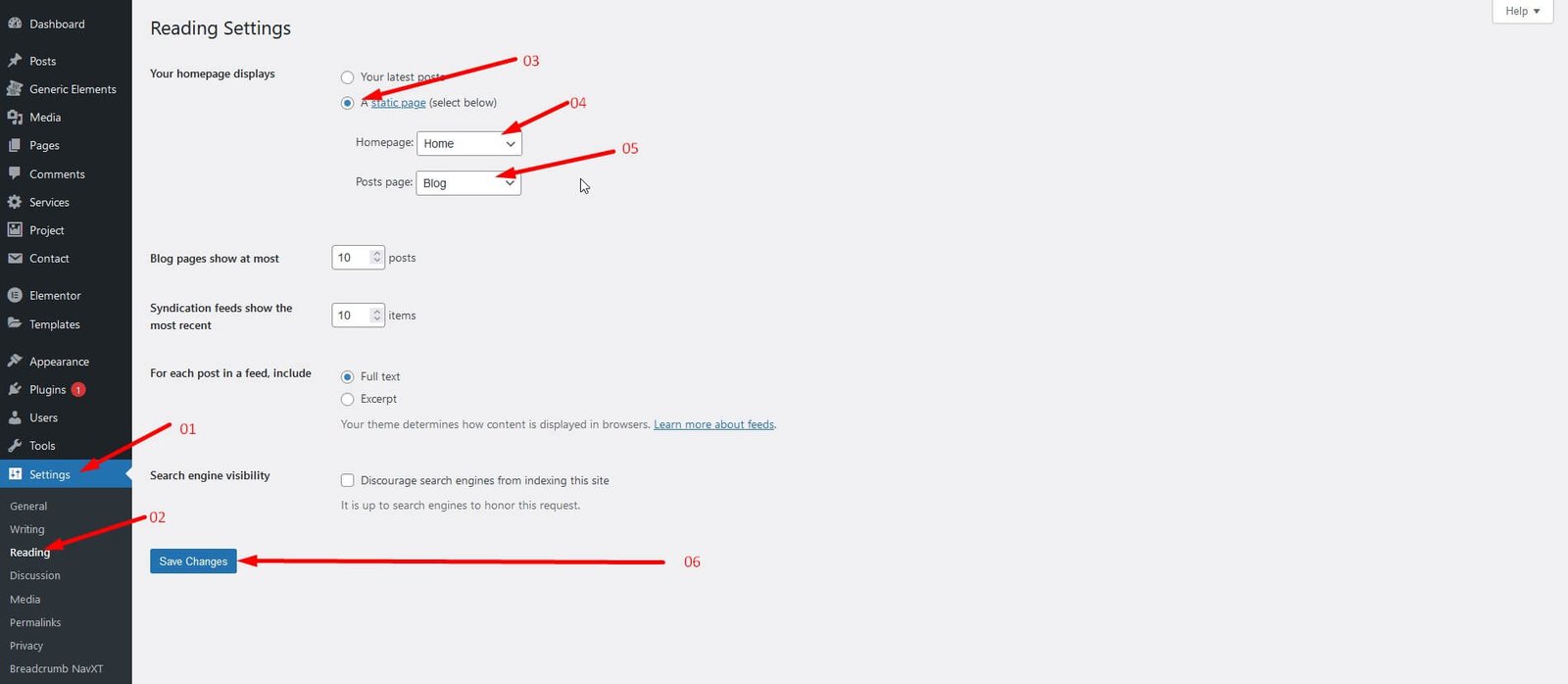
Home and Blog Page Settings:
You can assign and configure your home and blog pages by navigating to: Dashboard Settings Reading
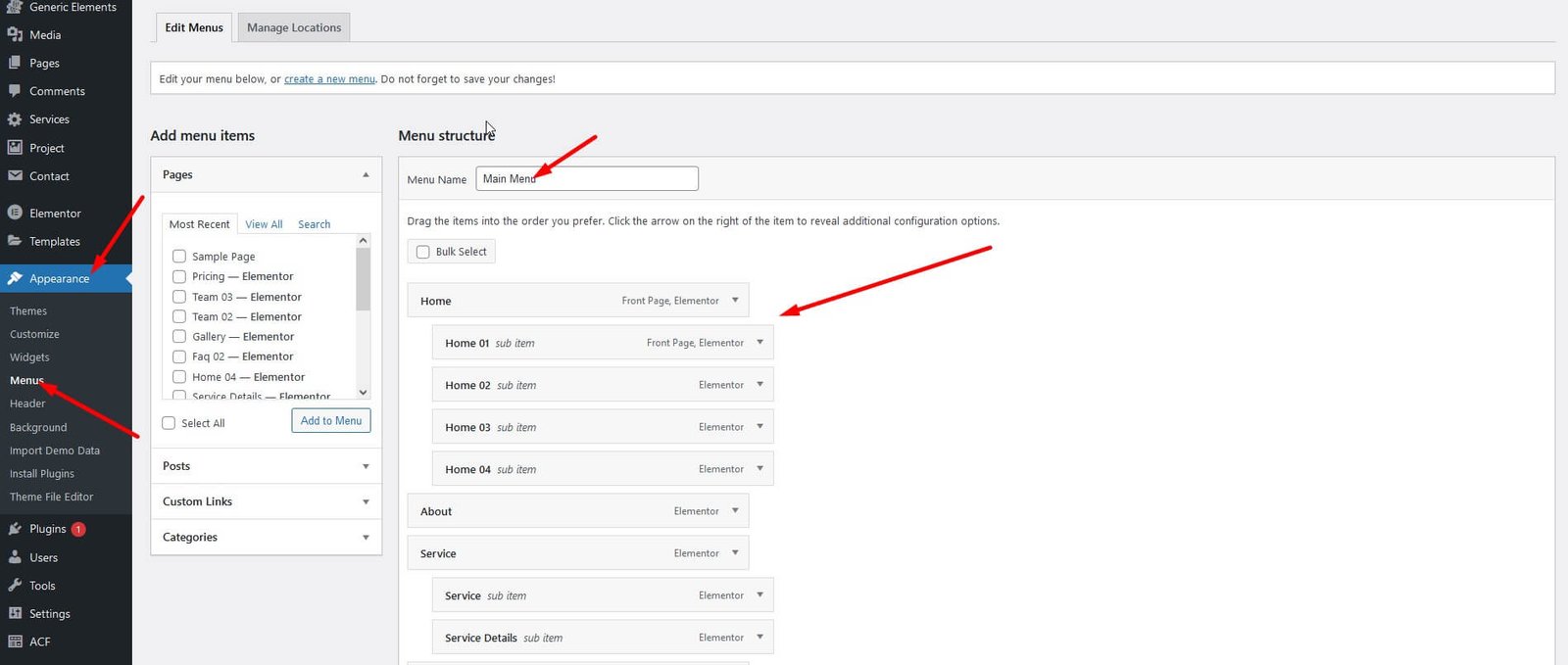
Customize Menu:
You can create and manage your website menus by navigating to: Dashboard Appearance Menus
Elementor Options:
Disable Elementor Default Colors & Fonts:
To disable Elementor’s default colors and fonts, navigate to: Dashboard Elementor Settings General Checked both Check both options to disable default colors and fonts.

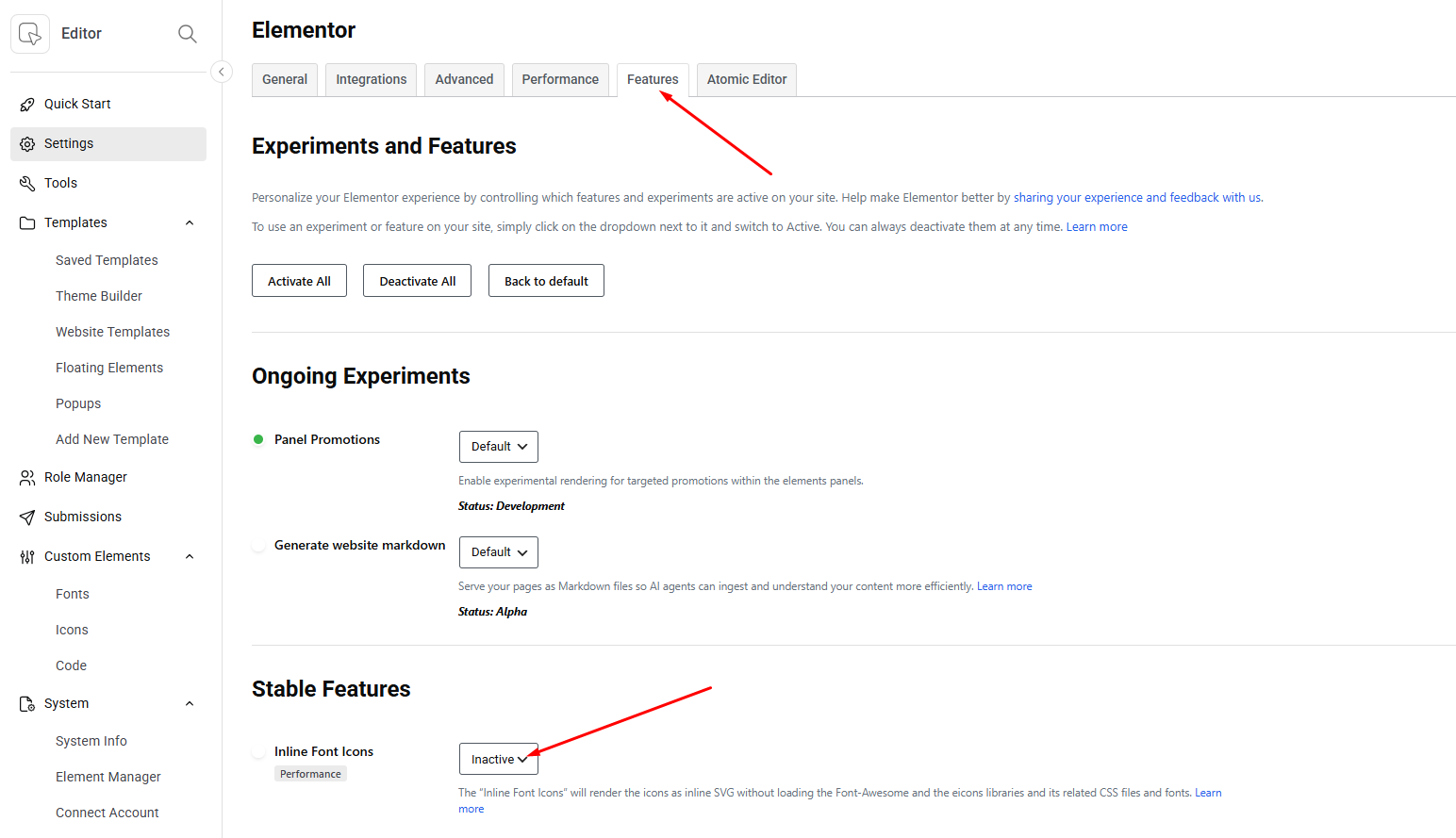
Elementor Font Awesome Icons:
If Font Awesome icons are not displaying properly or styles are not applied (e.g., showing as SVG icons):
Navigate to: Dashboard Elementor Settings Features Inactive -> Inline Font Icons
Customize Elementor Width:
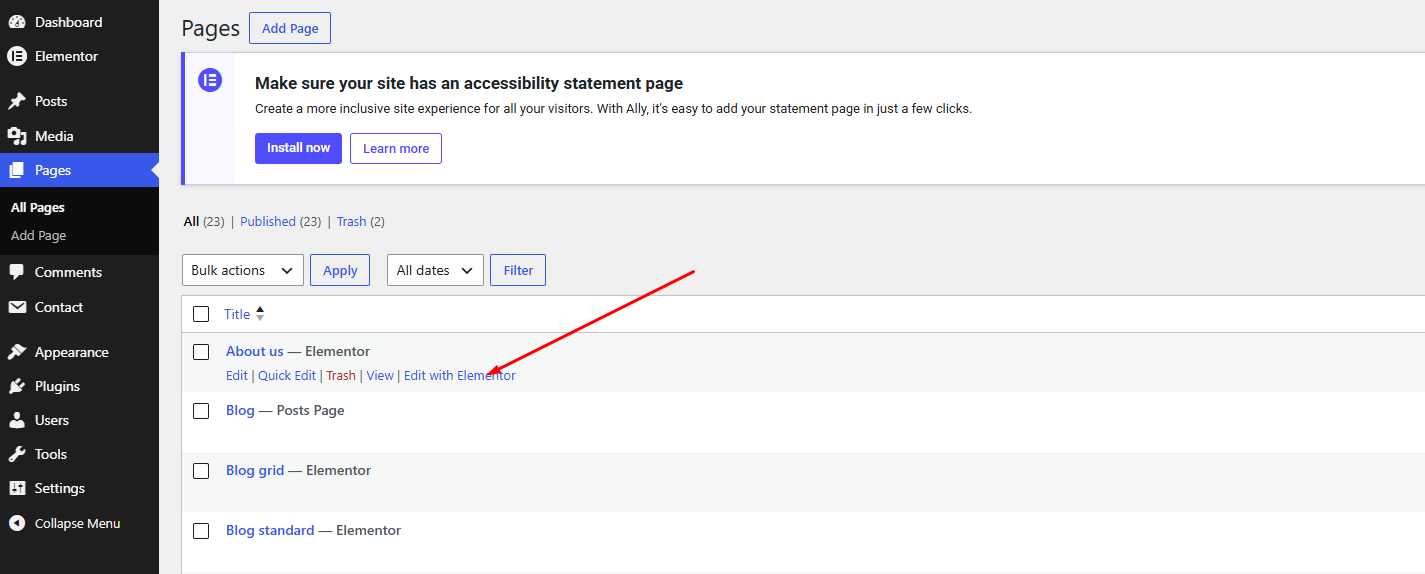
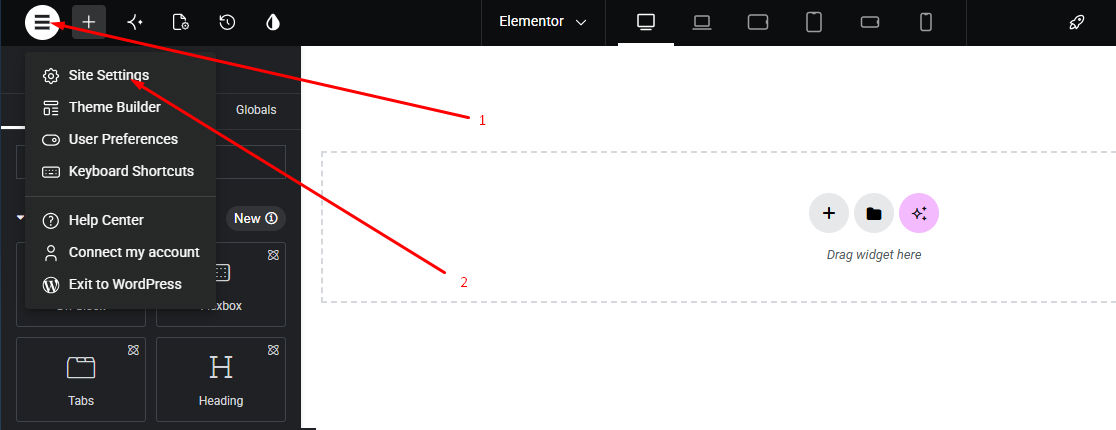
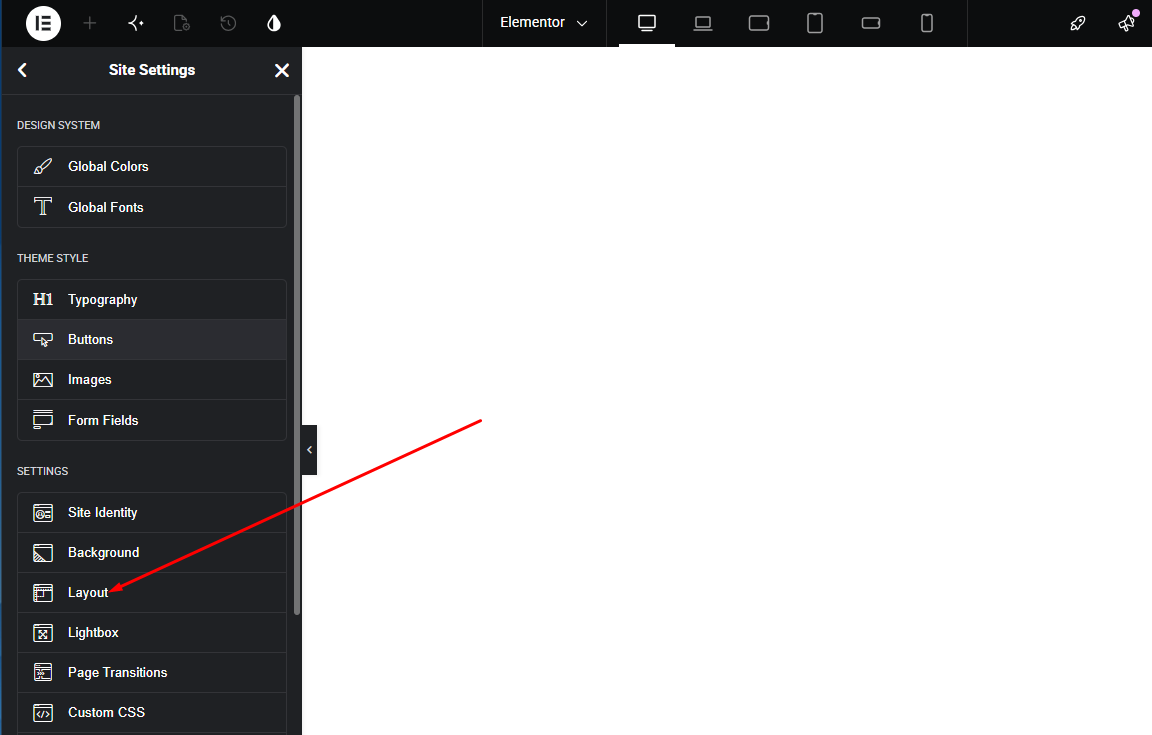
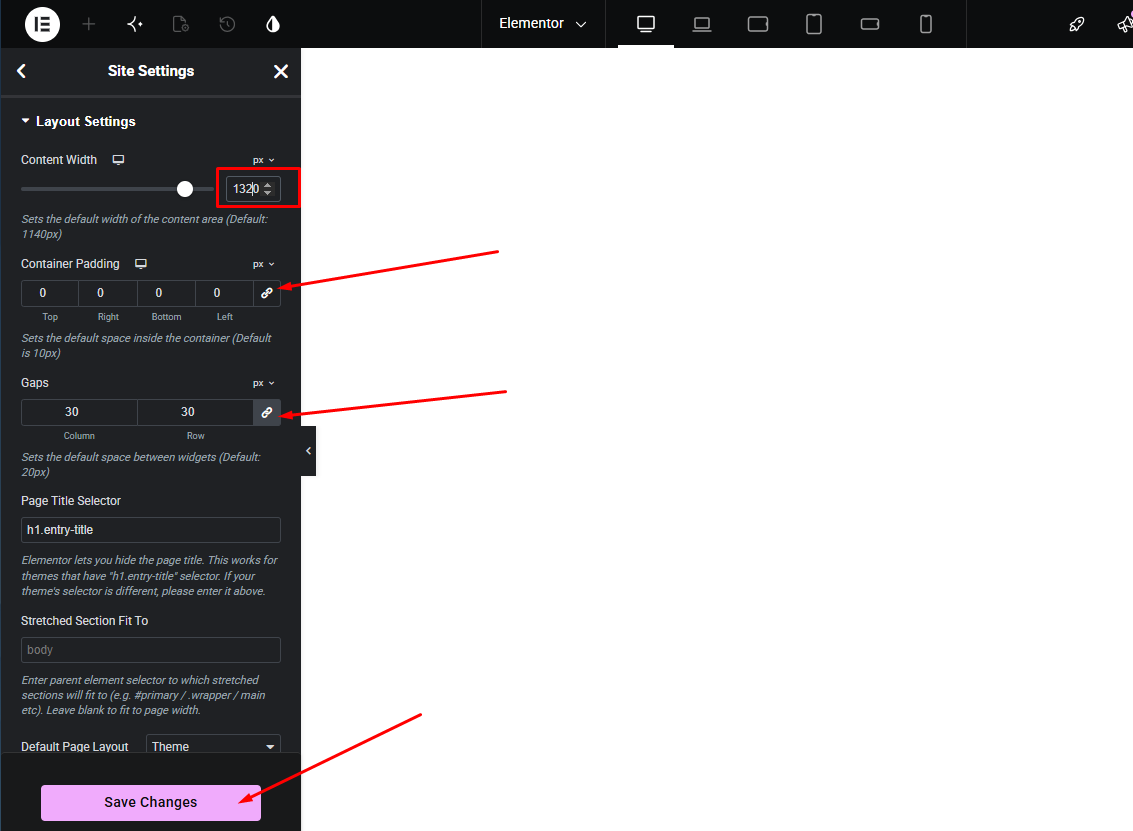
To Customize Elementor Content Width Navigate to: Dashboard Pages Home(Edit with elementor) Let Top Bar Site Settings Layout Change Content width, container padding & gaps
Enable Elementor for Custom Post Types:
- Navigate to Elementor Editor Settings General from the WordPress admin dashboard menu.
- In the Post Types field, select the post types where you want to enable Elementor.
- Click the Save Changes button to apply your settings.
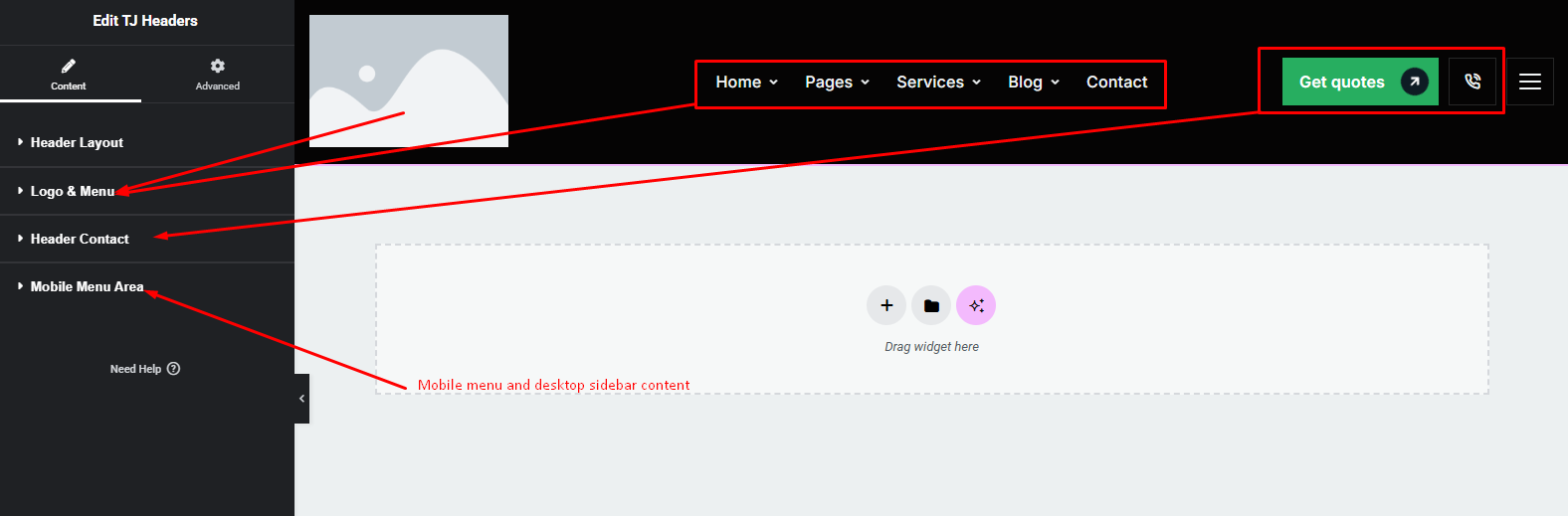
Change Site Logo:
To change Site Logo navigate to: Dashboard DesignSuite Theme Builder Header Default Header (open with elementor) and follow the following steps:


Edit Header:
To customize Header navigate to: Dashboard DesignSuite Theme Builder Header Which page you want (open with elementor) and follow the following steps:
Footer:
To customize Footer navigate to: Dashboard DesignSuite Theme Builder Footer Which footer you want (open with elementor) and follow the following steps:

Elementor Widgets:
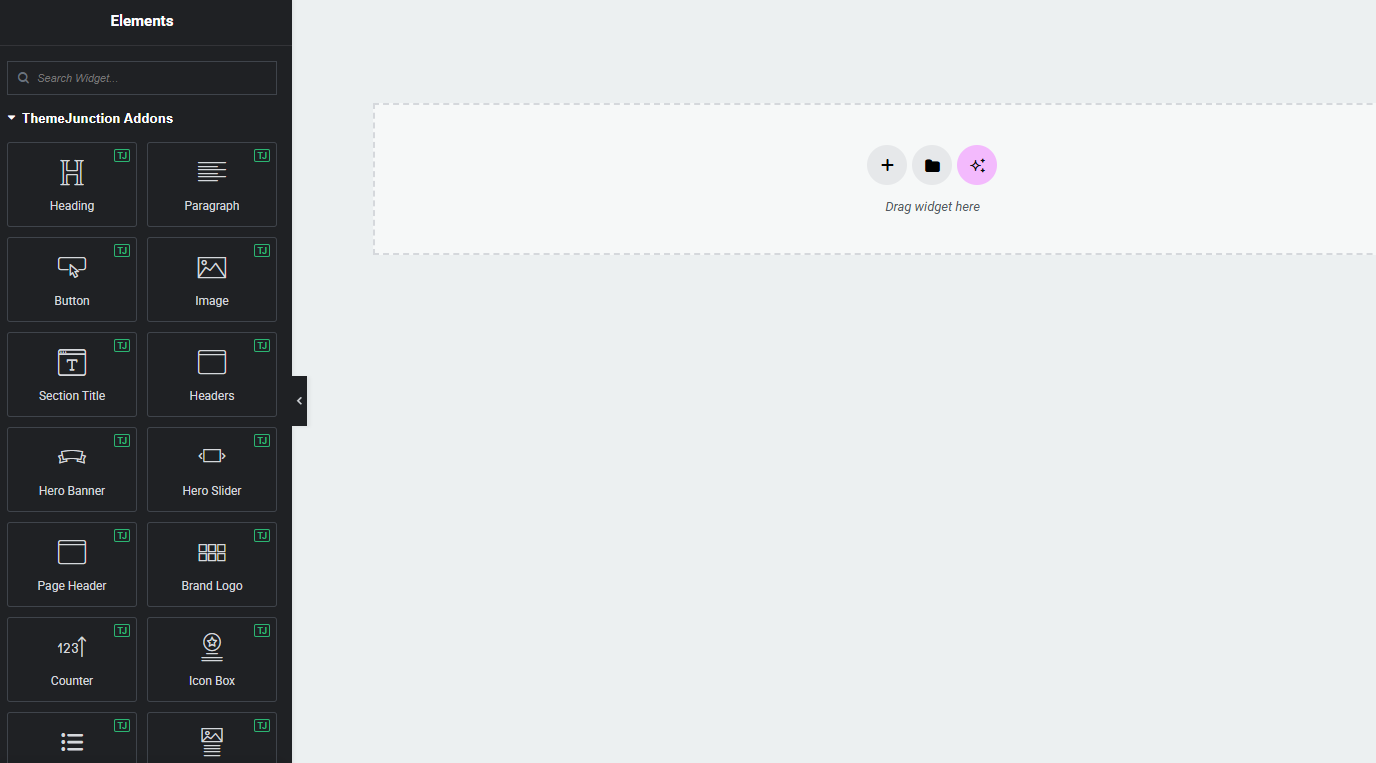
Elementor Page Builder comes with many built-in widgets by default. In addition, we have created 50+ custom Elementor widgets to enhance your website’s functionality. You can find these widgets under the ThemeJunction Addons section when editing a page with Elementor.
Room Post Types
Every bookable room on your site is a Room — a dedicated post type added by the Auriva Essential plugin. A room holds everything the booking engine needs: its nightly price, how many people it sleeps, how many physical units you have, its photos, its amenities and its availability calendar. This section explains every field on the room screen and what each one does, so you can set a room up with confidence.
Rooms live under the Rooms menu in your WordPress dashboard (the little house icon). Each room's public address is /room/room-name/ and the listing of
all rooms lives at /rooms/. Both of these URL bases can be renamed later under
Auriva
Theme Options
Rooms
— old links keep working automatically if you change them.
Good to know: most price and guest fields are optional. A brand-new room already works with sensible defaults — 1 unit, 1–2 guests, no weekend or per-person surcharges. Fill in only the parts that match how you actually sell the room.
Add / Edit a Room
To create a room, go to Dashboard Rooms Add New
At the top of the screen you will find the standard WordPress fields, which apply to a room like any other post:
| Field | Purpose |
|---|---|
| Title | The room's name, e.g. Deluxe Ocean Suite. Shown on the card, the single page and in search results. |
| Content (editor) | The main description of the room, shown on its single page. |
| Excerpt | A short summary used where a brief teaser is needed. |
| Room Image (Featured Image) | The room's main photo. Used on the card and as the default gallery image. |
Everything specific to booking lives in the Room Settings panel below the editor, split into tabs down the left edge. Each tab is documented in turn below.
General Tab
| Field | What it does | Default |
|---|---|---|
| Subtitle | A short line shown under the room title, e.g. “456 ft² / Park View / 2 Guests”. | Empty |
| Units In Stock | How many physical rooms of this type you have. This is the number availability is counted against — each booking reduces it for the dates booked, and the room stops showing once every unit is taken. | 1 |
| External URL | Optional. When set, this room's cards link to this web address (in a new tab) instead of the single room page — useful for rooms sold on another site. Leave blank to use the normal room page. | Empty |
Pricing Tab
This tab sets how much the room costs. The Regular Price Per Night is the foundation; every other option below is added on top of it. Price fields show your WooCommerce currency symbol automatically. Any surcharge you do not need can simply be left switched off.
Base price
| Field | What it does | Default |
|---|---|---|
| Regular Price Per Night | The base nightly rate. Every other price rule is applied on top of this. | 0 |
| Sale Price Per Night | An optional discounted nightly rate. Leave at 0 for no sale price. | 0 |
| Tax Class | Which WooCommerce tax class the room is taxed under. Classes are managed in WooCommerce → Settings → Tax. Leave on Standard rate unless you need otherwise. | Standard rate |
Per-Person Pricing
Add an extra charge for each guest, on top of the nightly rate.
| Field | What it does | Default |
|---|---|---|
| Charge Per Person | Master switch. When on, the adult and child rates below are added to the nightly rate. | Off |
| Price Per Adult | Amount added per adult, per night. Shown only when Charge Per Person is on. | 0 |
| Price Per Child | Amount added per child, per night. Shown only when Charge Per Person is on. | 0 |
Pet Fee
| Field | What it does | Default |
|---|---|---|
| Charge Per Pet | Master switch for a pet fee. When on, a fee is charged per pet, per night (it is not multiplied by the number of rooms) and appears as its own line in the cost breakdown. | Off |
| Price Per Pet, Per Night | The nightly amount charged for each pet. Shown only when Charge Per Pet is on. | 0 |
Tip: for a one-off flat pet charge (rather than per night), add an Extra Service priced “Once per booking” instead.
Weekend Pricing
Charge different rates on weekend nights. All four fields below appear only when the master switch is on.
| Field | What it does | Default |
|---|---|---|
| Enable Weekend Rates | Master switch. Turn on to use separate weekend rates. | Off |
| Weekend Price Per Night | The nightly rate used on weekend nights, replacing the regular rate. | 0 |
| Weekend Price Per Adult | Per-adult surcharge on weekend nights (used with per-person pricing). | 0 |
| Weekend Price Per Child | Per-child surcharge on weekend nights (used with per-person pricing). | 0 |
| Weekend Price Per Pet | Per-pet weekend rate. Only used when the pet fee is enabled. | 0 |
Occupancy Tab
This tab controls how many guests (and pets) a single unit of the room can take. These limits also drive the guest steppers in the search and booking forms — a search asking for more guests than any room can seat simply returns no results, so keep the maximums realistic.
| Field | What it does | Default |
|---|---|---|
| Minimum Guests | The fewest guests that can book the room. | 1 |
| Maximum Guests | Total guests allowed per unit, adults and children combined. | 2 |
| Cap Adults Separately | Switch. Turn on to set a limit on adults specifically (in addition to the overall maximum). | Off |
| Maximum Adults | The adult limit. Shown only when Cap Adults Separately is on. | 0 |
| Cap Children Separately | Switch. Turn on to set a limit on children specifically. | Off |
| Maximum Children | The children limit. Shown only when Cap Children Separately is on. | 0 |
| Cap Pets | Switch. Leave off to accept any number of pets. Turn on and set the maximum to 0 to mark the room as no pets — it is then hidden from any search that includes a pet. | Off |
| Maximum Pets | The pet limit, counted per stay. Shown only when Cap Pets is on. | 0 |
Note: allowing pets and charging for pets are separate settings. A room can welcome pets for free — set the cap here, and leave the Pet Fee off.
Availability, Price Ranges & Channel Sync
Three tabs work together to control when a room can be booked and at what price on specific dates.
| Tab | What it does |
|---|---|
| Availability | An interactive calendar. Click dates to block them off, change the number of available units for a date, or set a special price for individual days. Anything you set here overrides the room's normal price and stock for those dates. |
| Price Ranges | Named date ranges (e.g. “Peak Season”, “Christmas Week”) that apply a price to a whole span of dates at once, instead of clicking each day. These expand into the same day-by-day overrides the calendar edits. |
| Channel Sync | iCal import and export. Export gives you a feed URL you can paste into Airbnb, Booking.com or Google Calendar so they see this room's booked dates. Import lets you add feed URLs from those same channels so their bookings block dates here — keeping every channel in step and preventing double-bookings. |
How Prices & Discounts Are Shown
It helps to know which price appears where, because a room has two kinds of price: a fixed headline rate and a date-specific rate that includes any price ranges and discounts.
The headline price (before dates are chosen)
The price on the room card and in the top-right of the booking form is the room's base nightly rate — the Regular Price Per Night (or the Sale Price when one is set and lower) from the Pricing tab. It is a fixed “starting from” figure.
Important: setting a Price Range or a per-date price does not change this headline number. A price range applies to specific dates, so there is no single figure to put on a card that has no dates yet. The headline price stays at the base rate by design — the range takes effect once the guest picks those dates.
The date-specific price & discount (after dates are chosen)
As soon as a guest selects check-in and check-out dates, the booking form recalculates the real price for that stay — applying weekend rates, price ranges, per-date prices, and any discounts. The cost breakdown under the form then shows the saving in full:
- the gross room line (the price before any discount);
- one line per discount, each labelled with the name you gave the rule and its percentage (e.g. “Long stay −10%”);
- a “You save −$…” total summarising the discount;
- the final Total for the stay.
So a discount you configure is always visible to the guest — just at the point it actually applies, in the breakdown, rather than as a static label on the card.
Note: there is no permanent “sale” badge on the room card before dates are picked. This matches how hotel booking normally works — the exact saving depends on the dates, so it is shown once those dates are known.
Facilities Tab
Facilities are the small icon + text items in a room's details row (shown on the card and the single page). This tab has two parts.
The four built-in items
Type a value into any of these to show it next to its icon; leave one empty to hide it.
| Field | Icon | Example value |
|---|---|---|
| Bed | Bed | King bed |
| Size | Area | 42 m² |
| Sleeps | Guests | 2 guests |
| Bath | Bathtub | 1 Bathroom |
Because the value is free text, the same field reads correctly whatever you type — “King bed” on one room and “Twin beds” on another, with no separate unit field to manage.
Other (custom) facilities
If you have created your own facility icons under Rooms → Facilities (such as Balcony or Sea View), a checkbox list appears here. Simply tick the ones this room offers. Each one also gets an optional text box so you can reword it for this room only (e.g. “Private balcony”) — leave it blank to use the facility's own name.
This second part appears only after you have added at least one custom facility, so a fresh site sees just the four built-in items.
Extra Services Tab
A simple checkbox list of the add-ons guests can select when booking this room — breakfast, an airport transfer, a cleaning fee, and so on. Tick the ones this room offers.
The services themselves, and their prices, are created once under Rooms → Extra Services and can then be reused across many rooms. See that section for how each add-on is priced.
Media Tab
| Field | What it does |
|---|---|
| Card Image | An optional alternative to the Room Image (featured image), used on room cards and listings. If empty, the featured image is used. |
| Room Gallery | The images shown in the gallery on the single room page. Drag to reorder. |
| Card Gallery | Optional extra images for the room card in listings — the first is shown by default and the rest are revealed on hover. Drag to reorder. Leave empty to just use the single Card Image above. |
Layout Tab
Two per-room presentation overrides. Both default to Inherit, meaning the room follows the site-wide settings under Auriva → Theme Options → Rooms → Single Room until you change them here.
| Field | Options | What it does |
|---|---|---|
| Single Room Layout | Inherit / Gallery / Slider / Image | How the images appear at the top of this room's page. Inherit uses the site default. |
| Booking Form Placement | Inherit / Right sidebar / Left sidebar / Hidden | Where the reservation form sits on the page. Hidden replaces the form with the price and a contact note, so the room cannot be booked online from its page (useful for enquiry-only rooms). |
Room Types
Found under Rooms Room Types Room Types are categories for your rooms — Studio, Suite, Deluxe, Family, and so on. They behave exactly like the standard post categories: give each a name (and optionally a parent, since they can be nested) and assign them to rooms from the room edit screen. They are used to group and filter rooms in listings and menus.
Facilities (Icons & Order)
Found under Rooms Facilities This is where you define the amenity icons that appear in each room's details row. Add a facility, give it a name, then set:
| Field | What it does |
|---|---|
| Icon | The glyph shown beside the facility, picked from the theme's own icon set — so what you choose is exactly what appears on the front end. |
| Value | How the facility gets its text. Choose Custom and it simply shows the facility's name whenever a room ticks it (e.g. Balcony). Or map it to one of the four built-in slots (Bed / Size / Sleeps / Bath) so it pulls its text from that field on each room. |
| Order | Display order — lower numbers come first. Leave gaps of 10 so you can slot a new facility in later without renumbering. |
The four built-in facilities (Bed, Size, Sleeps, Bath) already work without doing anything here — this screen is only needed when you want to add your own amenities or change the icons and ordering.
Extra Services (Add-on Pricing)
Found under Rooms Extra Services Create an add-on once here, then offer it on any room from that room's Extra Services tab. Each service has the following settings, grouped into Pricing, Per-guest pricing, Availability and Display.
Pricing
| Field | What it does |
|---|---|
| Price | The base amount, before the multiplier chosen below. |
| Quantity | Either “Work it out automatically” (using the Charge rule below) or “Let the guest choose how many” (which reveals minimum / maximum quantity fields). |
| Charge | How the price scales when charging automatically — see the table just below. |
| Minimum / Maximum quantity | The range a guest may pick, when the quantity is guest-chosen. |
The Charge options and how each one multiplies the price:
| Charge option | Price is multiplied by… |
|---|---|
| Per night | Number of nights. |
| Per night, per room | Nights × number of rooms booked. |
| Per guest | Number of guests (once for the stay). |
| Per night, per guest | Nights × guests. |
| Once per booking | Nothing — a single flat charge for the whole booking. |
| Per night, times the quantity chosen | Nights × the quantity the guest selected. |
Note: the plain per-night and per-stay options are not multiplied by the number of rooms — a two-room booking pays them once. Only “Per night, per room” scales with the room count.
Per-guest pricing (optional)
For the guest-counting Charge options only, you can charge adults and children different amounts. Fill in
Price per adult and/or Price per child and they replace the base price for this service; leave both blank and every guest is charged the same. Set the child price
to 0 to include children free of charge.
Availability
| Field | What it does |
|---|---|
| Obligatory | When on, the service is always charged and the guest cannot untick it. Use for a cleaning fee or a city tax. |
| When it applies | Always, Only for stays within a date range, or Except for stays within a date range. Judged against the guest's dates — a service outside its range is not offered and not charged. |
| Range starts / Range ends | The date window (inclusive). Leave either end blank for an open-ended range. Shown only when a date range is selected. |
Display
| Field | What it does |
|---|---|
| Text after the price | Optional wording shown after the price (e.g. “per adult, incl. VAT”), replacing the automatic wording generated from the Charge setting. |
Room Theme Options
While the Room screen controls a single room, the Room Theme Options control how all rooms look and behave site-wide — the listing layout, the single room page, the booking form, and the calendar colours. Set these once and every room follows them (a room can still override a few of them on its own Layout tab).
You will find them at Dashboard Auriva Theme Options Rooms The panel is split into the subsections documented below. Remember to click Save Changes.
Archive
Controls the /rooms/ listing page — how rooms are laid out and paginated.
| Option | What it does | Default |
|---|---|---|
| Page Header Title | The heading shown in that banner. (Room type and facility archives use the term name instead.) | Our Rooms |
| Archive Layout | How rooms are listed — Grid or List. An availability search always uses List. You can preview the other by adding ?layout=grid or ?layout=list to the archive URL. |
Grid |
| Rooms Per Page | How many rooms show per page. Use -1 to show all on one page. | 9 |
| Columns | Grid columns: 1, 2, 3 or 4 across. | 3 Columns |
| Results Toolbar | Show the result count and the sort-by control above the listing. Handy once you have enough rooms to sort. | Enabled |
| Pagination | Numbered links or a Load More button. Both keep real links to the other pages for search engines and visitors without JavaScript. | Numbered links |
| Card Button Text | The call-to-action label on each room card. | Book now |
| No Results Text | The message shown when a search or the archive returns no rooms. | No rooms found. |
| Facilities On Card | How many facility items to show on a room card. Rooms with fewer filled in simply show fewer. | 3 |
Permalinks
Rename the URL bases used by rooms.
| Option | What it does | Default |
|---|---|---|
| Room URL Base | The path segment before a room name — the room in /room/deluxe-suite/. Leave empty for the default. | room |
| Rooms Archive Base | The path of the rooms listing itself — the rooms in /rooms/. Leave empty for the default. | rooms |
Safe to change: when you rename a base, the theme flushes the URL rules automatically and permanently redirects the old room URLs to the new ones, so existing links and search rankings survive. Just avoid a value that collides with an existing page slug.
Single Room
Controls the individual room page (/room/room-name/).
| Option | What it does | Default |
|---|---|---|
| Single Room Layout | The image layout at the top of the page — Gallery, Slider or Image. Preview another with ?layout=gallery, ?layout=slider or ?layout=image on any room URL. A room can override this on its Layout tab. |
Gallery |
| Booking Form Placement | Which side the reservation form sits on — Right sidebar or Left sidebar. Individual rooms can override this on their Layout tab. | Right sidebar |
| Enable Page Header | Show the title banner at the top of single room pages. | Enabled |
| Breadcrumb: Parent | The parent label in the breadcrumb trail (e.g. Home / Rooms / Room name). | Rooms |
| Breadcrumb: Current | The current-page label in the breadcrumb trail. | Room details |
| Show Gallery | Show the room gallery above the content. Falls back to the featured image. | Show |
| Show Facilities | Show the facilities/details row on the single page. | Show |
| Show Related Rooms | Master switch for the “related rooms” block at the bottom of the page. The five options below only apply when this is on. | Show |
| Related Rooms Subtitle | Small text above the related-rooms heading. | Keep reading |
| Related Rooms Title | The heading of the related-rooms block. | More Related Rooms and suites. |
| Related Rooms Button Text | Label for the button linking to the rooms archive. Leave empty to hide the button. | More Rooms |
| Related Rooms To Show | How many related rooms to display (1–6). | 3 |
Booking Form
Controls the reservation form and how the booking flow behaves.
| Option | What it does | Default |
|---|---|---|
| Form Title | The heading above the reservation form. | Reservation |
| Submit Button Text | The label on the form's main button. | Check availability |
| Weekend Days | Which days charge the weekend price tier. Leave as Saturday/Sunday for most markets; switch to Friday/Saturday where that is the local weekend. (Multiple days can be selected.) | Saturday, Sunday |
| Date Format | How dates are displayed in the form — e.g. 28 Aug 2026, 2026-08-28, 28/08/2026 or 08/28/2026. | 28 Aug 2026 |
| Carry Search Selections Into The Booking Form | Pre-fill the dates and guests a visitor chose on the search form. | Yes |
| Booking Window (Months) | How far ahead guests may book (1–36 months). | 16 |
| Prefetch Months | How many months of prices to load into the page up front. Lower is faster; further months load on demand (1–12). | 3 |
| Show Extra Services | Show the extra-services add-ons in the booking form. | Show |
| Show Availability Calendar | Display a month calendar of availability on single room pages. | Hide |
| Show Trust Badges | The “Secure Booking / Instant Confirmation / Free Cancellation” strip under the form. | Show |
Guest Age Policy
Shown beside the Adults and Children steppers so a guest knows which one, say, a 16-year-old belongs in. This is a property-wide policy — the same house rule for every room. Leave a field empty to show no note.
| Option | What it does | Default |
|---|---|---|
| Adult Description | The note beside the Adults stepper, e.g. “Age 18+”. | Empty |
| Children Description | The note beside the Children stepper, e.g. “Ages 0-17”. | Empty |
| Plural Label at Zero | English reads “0 guests”, so this is on by default. Turn it off for a language where zero takes the singular (“0 guest”). | On |
Calendar Colors
Colours for the date picker and availability calendar. Leave any field blank to inherit the theme palette — you only need to set the ones you want to change.
| Color option | What it colours |
|---|---|
| Dropdown Background | The background of the calendar/date-picker dropdown. |
| Dropdown Text Color | The text inside the dropdown. |
| Dropdown Border Color | The dropdown's outer border. |
| Date Border Color | The border around each individual date cell. |
| Available Date Background | The fill of dates that can be booked. |
| Start / End Date Background | The fill of the selected check-in and check-out dates. |
| Start / End Date Text Color | The text on those selected endpoint dates. |
| In Range Date Background | The fill of the nights between check-in and check-out. |
| In Range Date Text Color | The text on those in-between nights. |
| Hover Highlight | The highlight shown as the guest hovers over dates. |
| Unavailable Date Text Color | The text on dates that cannot be booked. |
Data
A single setting that only matters when you delete the plugin.
| Option | What it does | Default |
|---|---|---|
| Delete Booking Data On Uninstall | Off by default — deleting the plugin normally leaves every booking exactly where it is. When on, deleting the plugin from the Plugins screen also drops its booking tables (availability, per-date prices, inventory, channel feeds and imported bookings) along with its settings and scheduled syncs. | Keep |
Important: turning this on and then deleting the plugin cannot be undone and no backup is taken. Rooms, booking rules, facilities, extra services and WooCommerce orders are content and are never deleted, nor are your theme options. Simply deactivating the plugin deletes nothing at all — only deleting it acts on this setting.
Translating Theme:
You can easily translate this theme into another language. To ensure your website works properly, you will need to translate the following elements:
- Theme: Auriva
- Plugin: Auriva Essential
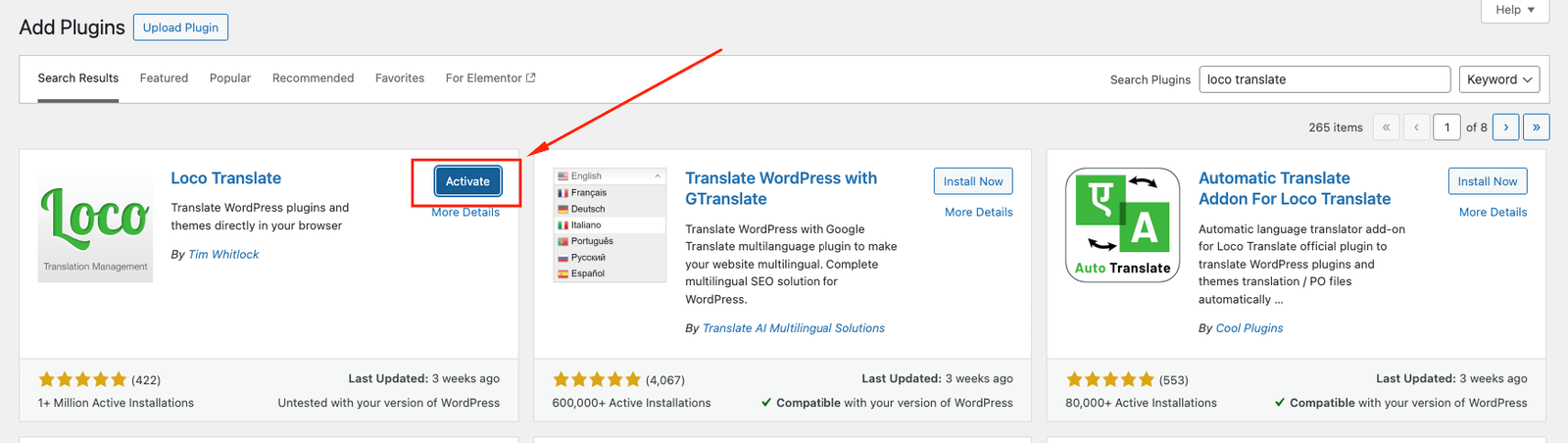
There are many tools available for translation, but the easiest method is to use the Loco Translate plugin. With this plugin, you can translate any WordPress theme or plugin that supports translations.
Here’s a step-by-step tutorial on how to translate any theme or plugin using Loco Translate:
- Install and activate plugin "Loco Translate".
- Select the Theme or Plugin you want to translate from "Loco Translate" menu
- Theme Translate { Auriva }
- Plugin Translate {Auriva Essential }
- Click on New language link
- Select your preferred language, and also select your location as "System". Then click on "Start Translating" button.
Here's a quick video tutorial about how to use Loco Translate:
Updating Theme:
We recommend that you use the Envato Market plugin to keep the theme up-to-date.
- Install and activate the "Envato Market" plugin manually. Here's the plugin zip file: http://envato.github.io/wp-envato-market/dist/envato-market.zip
- Navigate to Plugins Add New
- From WordPress Admin Panel, navigate to "Envato Market" menu.
-
In this page, you'll find a field for Inserting Envato Token. Insert your Envato Token Code from there. You can generate this code from this link:
https://build.envato.com/create-token/?purchase:download=t&purchase:verify=t&purchase:list=t .
Remember, while generating the token, you have to login using the same envato id which you used to purchase theme. - After completed the above steps successfully, Navigate to Appearance Themes. Here you'll see an "Update now" link beside your theme. Click on that link and your theme will be updated automatically
Here's a quick video tutorial explaining this method:
Demo Content Installation Failed:
This is typically a hosting-related issue. On most hosting providers, demo installation works without any problems. However, some hosts may block certain permissions, which can cause this issue. If this occurs, you can contact your hosting provider, or alternatively, submit a support request to our team, and we will assist you in resolving it.
404 Error in All Pages:
If you encounter this issue, please update your permalinks. To do this, navigate to Settings → Permalinks and click the Save Changes button.
Contact Us:
If you encounter any issues, please contact us at Support. We provide 12 hours of real-time support for our customers.
Thank you for purchasing our theme!
need to custom work.
If you need theme customization or want to create a custom theme or template, you can contact with us.
Contact